How to use a tool on a device
This guide shows you how to launch a Tool — built-in or custom — against an audited device from the device form.
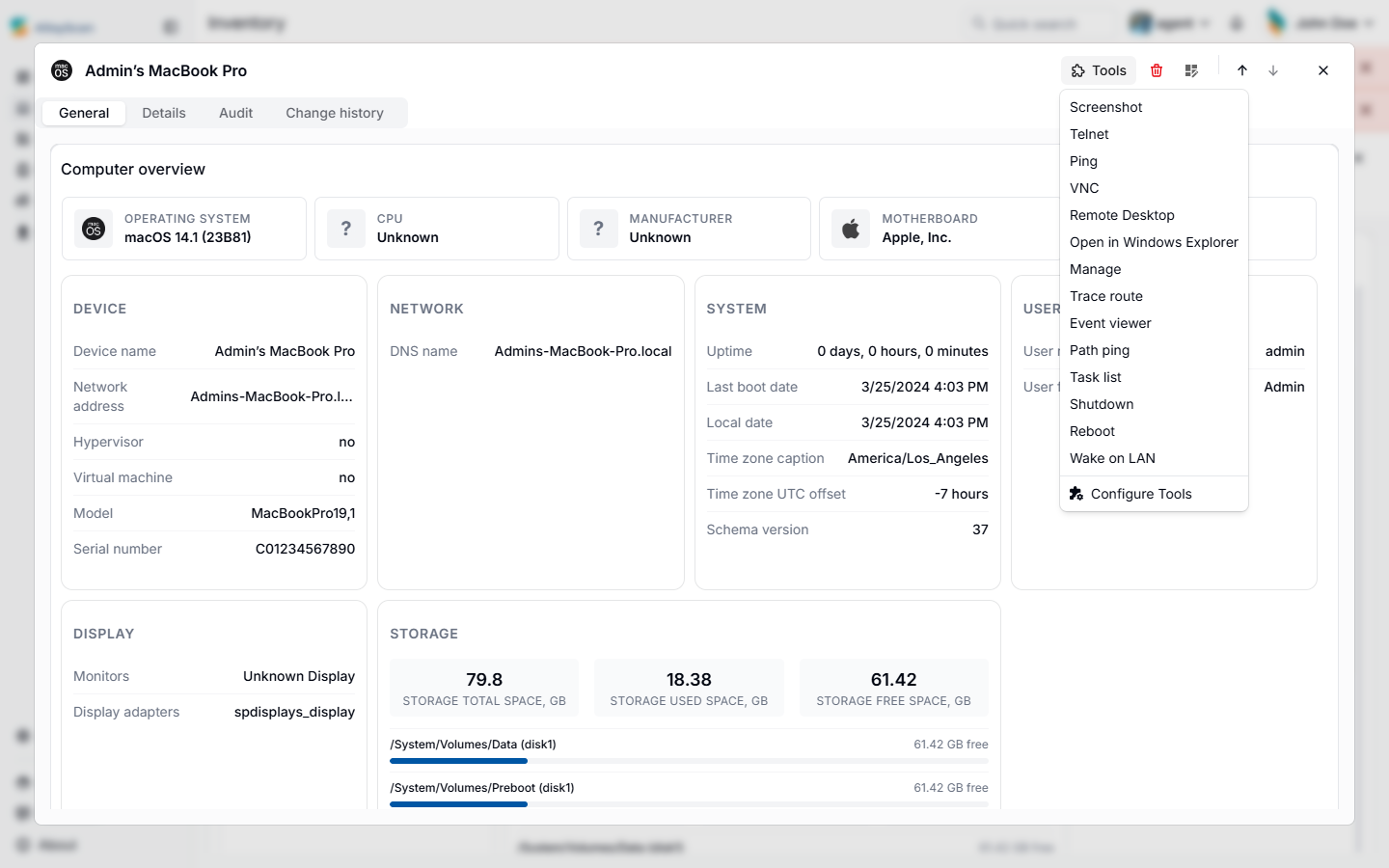
Device form with the Tools button in the header.
Prerequisites
- You sign in to AlloyScan with either the Administrator or User role on the current site.
- The Alloy Integration Launcher is installed on your local workstation (not on the target endpoint).
- The local client that the tool invokes (for example, the Remote Desktop client, your VNC viewer, or PowerShell) is installed on your workstation.
- The target device has been audited at least once so that its address attributes (DNS name, IP) are known to AlloyScan.
- Your workstation has network reachability to the target device on the protocol the tool uses.
Steps
-
Open Inventory from the left navigation and locate the target device. Use a saved view, the column filters, or the find a device workflow.
-
Click the device row to open the device form.
- Click the Tools button in the device form header.
-
Pick the tool you want to run from the catalog. Built-in entries (Screenshot, Ping, Remote Desktop, VNC, Trace route, etc.) appear alongside any custom tools the Administrator has defined.
-
The Alloy Integration Launcher activates on your workstation and starts the matching local client, targeted at the device's address. Approve any browser or operating-system prompt that asks you to launch the Launcher.
- Use the launched client as you normally would (for example, log in to the RDP session, read the Ping output, type into the PowerShell window).
Verify
After you launch a tool, you should see:
- The Launcher's confirmation prompt or icon on your local workstation.
- The matching client window open on your workstation, connected to or running against the target device.
If nothing happens after you click a tool, confirm that the Launcher is installed on your workstation and that your browser is allowed to invoke it. See About Tools for the execution model.