How to track the Change Requests' progress
On this page
Technicians and change request managers can see at any time where a change request stands in the Web App. The progress bar at the top of its form shows its lifecycle stage, the Approvals tab shows its approval stages and the approvers' votes, the Work Orders tab lists its work orders, and the Activity panel shows what was done on it. This article follows a change request from submission to closing and shows where each part of its progress appears.
Default Workflow: The lifecycle stages, statuses, actions, roles, and values named in this article are those of a new 2026.1 database created with the Default Workflow; see Default Workflow Configuration and Change Request Workflow. An upgraded database need not have this content, and an administrator may have changed it.
Before you begin
- You see Change Requests in the Service Desk menu only when you may view change requests.
- You see an approval stage only if you may view the change request it approves, and an approval request only if you may view change requests.
- Unless this list names other roles, the actions in this article are offered to the Administrator (Full), Administrator (Workflow), Change Request Manager, and Change Request Technician roles. Assign to... and Close Request are offered only to the Administrator (Full), Administrator (Workflow), and Change Request Manager roles, and Cancel Approvals only to the Administrator (Full), Administrator (Workflow), and Approval Manager roles. Mark Duplicate is offered to more roles; see Action reference. Approve Request and Reject Request are offered only to a pending approver of a pending approval stage.
Open the change request
Find the change request in the Web App:
- In the Service Desk menu, choose Change Requests. A change request assigned to you or to a group you belong to is also listed in My Tickets, under My Work, until it is Closed; you see My Tickets only when you may view the class of the All Tickets list.
- Open the change request.
Read its stage on the progress bar
At the top of the change request's full form, the progress bar shows the six lifecycle stages of a change request in order and highlights the stage that the change request's current status belongs to. The stages after it are shown faded. Each stage holds these statuses:
| Stage | Statuses |
|---|---|
| Submission | Draft, Assigned |
| Approval | Pending Approval, Rejected |
| Planning | Approved, On Hold |
| Implementation | In Progress, Implemented |
| Review | Tested, Failed |
| Close | Completed, Closed |
The stage changes only when the status changes. For example, when Request Approval sets a Draft change request to Pending Approval, the bar moves from Submission to Approval.

See which action moves it on
There is no general status-change action: the status, and with it the stage, changes when an action is run on the change request, when an automatic rule applies, or when an update is received by e-mail through the Mail Connector, which sets In Progress. On the change request's full form, the actions are on the Action Bar, the panel on the right side, except Mark Duplicate, which is on the form's toolbar; see Find a ticket's actions.
| Action or event | Status it sets | Stage on the bar |
|---|---|---|
| Assign to me, or Assign to... with a new assignee | Assigned | Submission |
| Request Approval | Pending Approval | Approval |
| The approval stage created last is approved | Approved | Planning |
| The approval stage created last is rejected | Rejected | Approval |
| Cancel Approvals | In Progress | Implementation |
| Place On Hold | On Hold | Planning |
| Take Off Hold | In Progress, whatever the status was before the hold | Implementation |
| Implement Change | Implemented | Implementation |
| Testing Completed with Testing Passed | Tested | Review |
| Testing Completed with Testing Failed | Failed | Review |
| Complete Request, or the last work order that is not Closed is completed | Completed | Close |
| Close Request, Mark Duplicate, or the automatic closing | Closed | Close |
| Reopen Request | In Progress; Draft when the change request has a group but no assignee; Assigned when you change the assignee | Implementation; Submission for Draft and Assigned |
Some steps leave the bar where it is. Create Approval, Schedule Work, Create Work Order, and Log Work do not change the status, and saving an Assigned change request while you are its assignee does not move it to In Progress. Testing Completed is not offered on a change request of the type Minor. In Pending Approval, none of the actions that take a change request from Draft to Closed is offered.
For the steps from Draft to Closed, with the statuses in which each action is offered, see Take a change request from Draft to Closed.
Follow its approvals
To have the change approved, a technician runs Create Approval and then Request Approval; see Request an approval. To see how far the vote has got:
- On the change request's full form, open the Approvals tab.
- Read the tree. Each top row is an approval stage, with the stage's name in the approver column, and the stage's approval requests, one per approver, are listed under it. The columns are the approver, the decision date, the type, the status, and the rank.
- To see more, open a row. An approval stage's General tab holds its settings, among them the start time and the deadline, and the Approval Requests grid, which shows the status and the decision date of each of its approval requests.
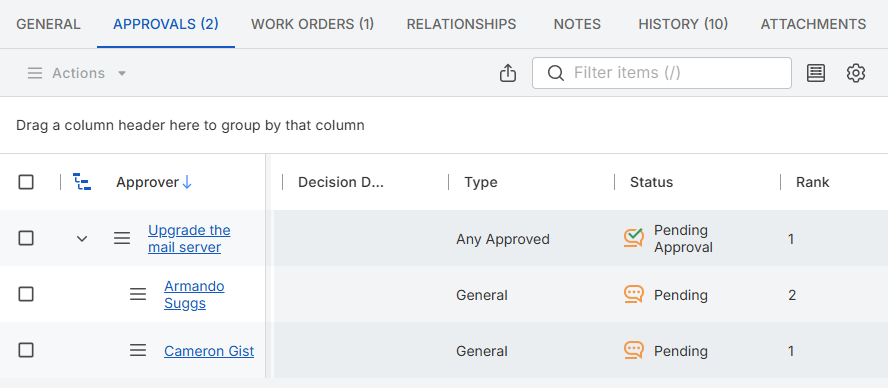
After every vote, the stage's outcome is calculated from its type; see Approval types. When a stage is approved or rejected, its approval requests that are still pending are set to Not Required. An approved stage opens the stage of the next rank: that stage is set to Pending Approval, and its approvers are e-mailed. A rejected stage opens no next stage.
The change request's status follows the approval stage created last for it. When that stage is approved, the change request becomes Approved, and the bar moves to Planning. When it is rejected, the change request becomes Rejected, which stays in Approval. If an earlier stage is rejected while a stage created later is still pending, the status stays as it is.
Approval Requests, in the Service Desk menu, lists approval requests, with the approved record, the stage, the approver, the decision date, and the status. Use the link in the approved record's column to go to the change request. For how approvers vote, see Vote on an approval request.
Follow its work orders
We recommend a work order below a change request to implement the change once it is approved. To create one:
- On the change request's full form, in the Relationships section of the Action Bar, run Create Work Order. It is offered in Draft, Assigned, In Progress, Approved, Rejected, Tested, Failed, and Implemented.
- Complete the form "Create Work Order". It requires a summary and a description, which are pre-filled with the change request's, a type, a requester, a service, an urgency, and an impact. The service is pre-filled with General Work Order and the requester with you. You can also set the assignee group, the assignee, and the scheduled start and end dates; the assignee can only be a member of the change request's own assignee group.
- Click Submit. The action creates a work order whose parent is the change request and logs "Created Related Work Order" on the change request, and the new work order opens. The change request's status does not change.
To follow the work orders:
- The change request's Work Orders tab lists its work orders.
- The Performance panel of the change request's General tab shows its time spent and its cumulative time spent. The cumulative time spent adds the activity time of every work order below the change request, at any depth.
- When the last of the change request's work orders that is not Closed is completed, the change request becomes Completed, and the bar moves to Close.
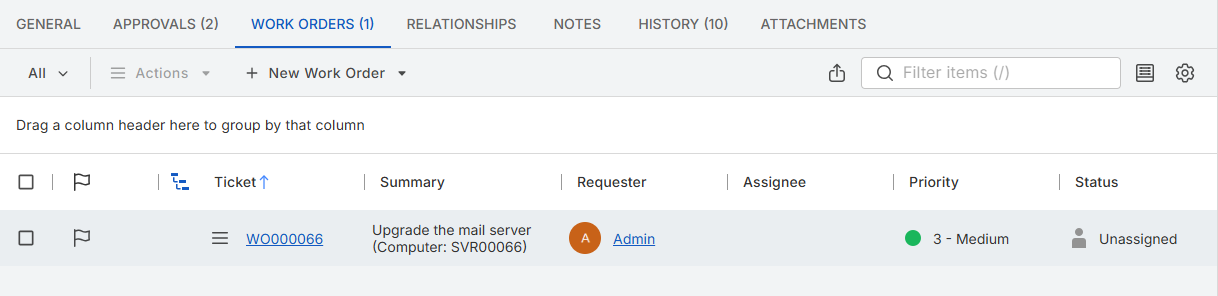
For a work order's own statuses and stages, see Work Order Workflow.
Read its history on the Activity panel
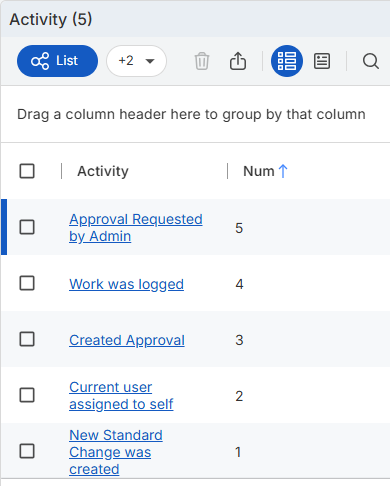
The Activity panel is the last panel of the change request's General tab, below the description. When an action changes the status, the activity it logs records the old and the new status name. The actions log entries such as "Created Approval", "Created Related Work Order", "Marked as 'Implemented'", "Marked as 'On Hold'", and "Marked as 'Closed'".
Complete and close the change request
When the work is done, complete and close the change request:
- Run Complete Request, fill in the "Add a Comment" form, and click Submit. The status becomes Completed, and the bar moves to Close. The change request's work orders that are not Closed are set to Completed.
- Run Close Request, choose a Closure Code, and click Submit. Close Request is offered in Completed and only to the Administrator (Full), Administrator (Workflow), and Change Request Manager roles. The status becomes Closed.
Complete Request stops when the requester of the change request, or of a work order that it sets to Completed, has no valid primary e-mail address; see Find out why an action stops on an e-mail address. A change request that stays Completed without changes for the number of days in the workflow parameter Automatically Close on Change Request Completed (Days) is closed automatically; the day count is set to 14 in the Default Workflow.
Closing changes only the change request itself: its work orders and approvals stay as they are, and no warning appears when the change request still has open work orders. A closed change request can be reopened with Reopen Request; see Reopen a closed change request.
Result
For any change request, you can now tell which lifecycle stage it is at and which action moves it on, which approval stage it is waiting on and how the approvers have voted, and which work orders carry out the change and how much time has been spent on it and on its work orders. The Activity panel shows how it got there.
In the Settings App, an administrator sets the order of a change request's lifecycle stages and the stage that each status belongs to; see Lifecycle stages.