How to generate a QR code for Alloy mobile apps
On this page
The Alloy Navigator app for technicians and the Alloy Self-Service app for portal users connect to your installation through the address of its API module, the API URL. An administrator finds that URL, checks that each app has a configuration record to read, and hands the URL out as a QR code. Technicians and portal users then scan the code on the sign-in page of their app instead of typing the address.
Before you begin
- The API module must be installed, and the API must be configured for Access Token authentication. When the address entered in either app answers with a Windows authentication challenge, the app shows "Make sure the URL points to Alloy Navigator API configured for Access Token authentication". See System Requirements and Install the API.
- Each user needs an account of the right type: a technician account for the Alloy Navigator app, a Self Service Portal customer account for the Alloy Self-Service app. See Create and Maintain Technician Accounts and Create and Maintain Customer Accounts.
- The Alloy Self-Service app does not need a Self Service Portal web site.
- To open the Admin Center, your account needs the Basic administrative access permission. Managing mobile application records requires the Mobile Applications administrative permission ("Allows managing Mobile Applications"); in the Admin Center, the server also checks the access policy for administering services. See Permissions Reference.
- Users install the apps from their device's app store. Both apps are available for Android and iOS.
Find the API URL
The API URL is the address of the API module, for example
https://navigator.example.com/api. You can read it in any of these places:
- In the Web Configuration tool, select the API instance in the tree. The information pane shows the URL in its Web category; see Check an instance.
- In the Admin Center, under Apps and Portals > API, the instance's General tab shows the URL, the API's base URL; see Set the name and URL (General tab).
- The same value is stored in the API Link system macro, which the Settings App lists under Workflow and Business Logic > Advanced > System Macros > Links; see Link macros.
When the instance URL and the system macro differ, the Admin Center's General tab shows the alert "System macro differs from URL".
The URL may be given with or without a slash at the end.
Check the mobile application records
Each app reads its configuration from a mobile application record on the
server and asks for it by an application id built into the app:
NavigatorMobile for the Alloy Navigator app and SelfServiceMobile for the
Alloy Self-Service app. Among the records with that id, a record with an empty
URL mask always qualifies, and a record with a URL mask qualifies when the
mask appears, compared without regard to case, inside the API URL the app
connects with. When no record qualifies, the app's configuration request
fails. See
How an app finds its record.
In the Admin Center:
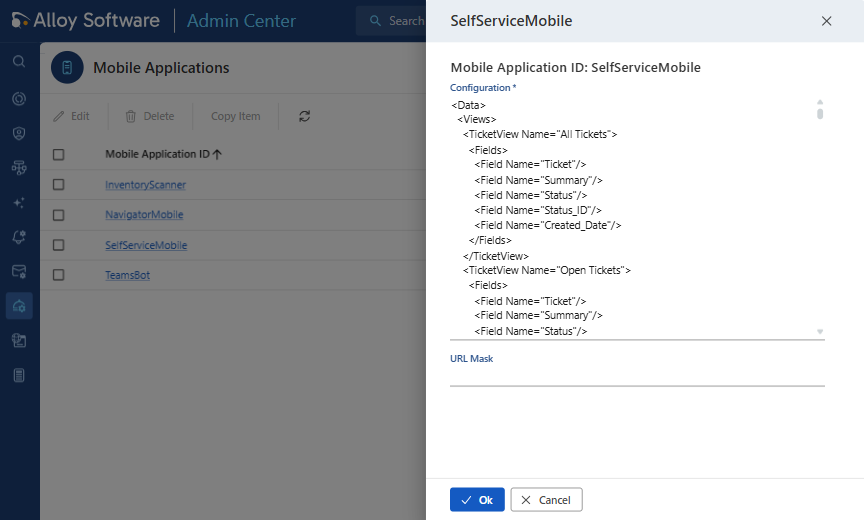
- Go to Services and Integrations > Mobile Applications. The page lists the records.
- Open a record. The drawer is titled with the application id, and its section reads "Mobile Application ID:" followed by the id.
- If the record has a URL Mask, check that the mask appears in the API URL you are going to hand out.
A database upgraded from a version before 2022.1 has no SelfServiceMobile
record until you import one. The Admin Center's Mobile Applications page
has no New button; you bring records into a database with Import
Settings… in the Settings App. See
Export and import records.
Create the QR code
You produce the QR code outside Alloy Navigator, with a QR code generator of your choice. The server generates no QR code, enrollment code, or onboarding token, and nothing in the database or the API records that a code was issued.
The QR reader of the Alloy Navigator app and the Alloy Self-Service app accepts two payloads:
- The API URL itself: a payload that begins with
http://orhttps://. - A JSON object with
API_URLand, optionally,API_USER, the user name to prefill.
A code that carries only the URL can serve every user, who then enters a user name and password or uses single sign-on. A code that also carries a user name prefills it, so you make one code per user. For example, with your own API URL and user name in place of the sample values:
{ "API_URL": "https://navigator.example.com/api" }{ "API_URL": "https://navigator.example.com/api", "API_USER": "jsmith" }A code that yields no URL is rejected with "Invalid QR Code". See Create a QR code.
Hand out the code
Give a code that carries only the URL to all users at once, with a short note on what it is for, for example in a newsletter, on your intranet, or in an announcement. Send a code that carries a user name to that user alone, for example in a personal e-mail message.
Connect the Alloy Navigator app
Technicians scan the code in the Alloy Navigator app:
- Open the app. Tap Scan QR code next to the address field and scan the
code, or enter the API address.
- A QR code that carries only the address leaves you to enter your user name and password or use single sign-on; a code that also carries a user name fills it in for you.
- A code that yields no address is rejected with the message Invalid QR Code.
- Enter your user name and password, or use a single sign-on provider. The app asks the server whether password sign-in is allowed and which single sign-on providers to offer; if it cannot get this answer, it offers password sign-in alone.
- If your account already has a session elsewhere, the app may show a
Confirm dialog with the server's message.
- Tap YES to end the other session and sign in.
- Tap NO to keep the other session. If the server allows both sessions, you are signed in and both stay active; otherwise you return to the sign-in form.
If the address points to an Alloy Navigator API older than version 8.7.0, the app refuses it with the message The specified URL does not point to Alloy Navigator API version 8.7.0 or later. For redirects, certificates, and remembered addresses, see Connect and sign in.
Connect the Alloy Self-Service app
Portal users scan the code in the Alloy Self-Service app:
- Open the app. Tap Scan QR code next to the URL field and scan the code,
or enter the URL.
- A QR code that contains only the URL fills in the URL field; you then enter your user name and password or use single sign-on.
- A QR code that also contains a user name fills that in too.
- A QR code that yields no URL is rejected with Invalid QR Code.
- The app asks the server how it authenticates and then offers password sign-in, single sign-on, or both, depending on what the server allows. If it cannot get that answer, it offers password sign-in only.
- Enter your credentials, or sign in with single sign-on.
The app signs you in as a Self Service Portal customer, not as a technician. If your server's version is older than 2022.1.0, the app refuses to sign in and names the required version in its message. On a server running version 2025.1.0 or later, signing in also asks for permission to send you notifications. See Connect to your server.
What you have now
Each user who scanned the code is signed in to the app. Both apps remember up to five server addresses, with the user names signed in through each one, and offer them on the sign-in screen, so a later sign-in does not need the code again.
Each device that signed in is registered for the person, once per app. A push notification goes to each of the recipient's devices registered for the app it targets. The Person record in the Web App lists the devices registered for the person, and you can delete a registration there; neither app offers a way to unregister a device. See Registered devices and Push Notifications.
Related topics
- Mobile App Configuration - the API URL, the QR code payloads, the mobile application records, and registered devices.
- Alloy Navigator Mobile App - connect, sign in, and work in the technician app.
- Alloy Self-Service Mobile App - connect, sign in, and work in the Self-Service app.
- System Requirements - the mobile apps, their accounts, and the API they need.