How to assign tickets automatically
On this page
Default Workflow: This article describes auto-assignment in a new Alloy Navigator 2026.1 database created with the Default Workflow. An upgraded database need not have this content, and an administrator may have changed it. See Default Workflow Configuration.
When a technician group has many incoming tickets, the workflow can assign each new incident and service request without anyone sorting them by hand. An administrator prepares the assignee groups, chooses how an assignee is picked, and makes sure each new ticket gets a group. In the end, a new incident or service request becomes Assigned to an available member of its group, or stays Unassigned with the group when no member is available.
Before you begin
- To change workflow parameter values in the Settings App, you need the administrative right of its Workflow Configuration page; in the Admin Center, you need the Workflow Configuration permission. See Workflow Configuration and Parameters.
- You edit templates in the Settings App; see Templates and Defaults.
- The Admin Center's Work Calendars page is gated by its own page permission. Personal work time is controlled by the Person permissions Modify Own Work Time and Modify Work Time for All. See Work Calendars.
Prepare the assignee groups
Set up the groups that tickets are assigned to; group records, with their lists of members, are in the Web App. A technicians-only group is a team that tickets are assigned to, and the list of assignee groups on a ticket offers only active technicians-only groups. Such a group contains only technicians. See Persons and Groups.
Auto-assignment considers only the members whose work calendar shows them available. Each technician can have a work calendar on the Person record; see Work Calendars.
Choose how an assignee is picked
The method is the value of the workflow parameter Assignee Load Balancing Method. In a new 2026.1 database created with the Default Workflow, it is set to Least amount of tickets for incidents and for service requests, and to Disable Load Balancing for problems; auto-assignment picks no assignee for a problem. See Problem Workflow.
To check or change the value in the Settings App:
- In the navigation tree, select Workflow and Business Logic > Workflow Configuration.
- Select the category that holds Assignee Load Balancing Method. The page shows an editor for each parameter of the category, labeled with the parameter's label, or with its name when it has no label, together with its description.
- Change the value.
- Click Apply.
In the Admin Center, the same values are on the Workflow Configuration tile of the Workflow and Business Logic section; see Workflow Configuration and Parameters. A running workflow engine picks up a changed value only when it notices that the parameters were modified; see Workflow Overview.
Give each new ticket a group
Auto-assignment picks an assignee among the members of the ticket's group, so each new ticket needs a group. A ticket gets one in either of these ways:
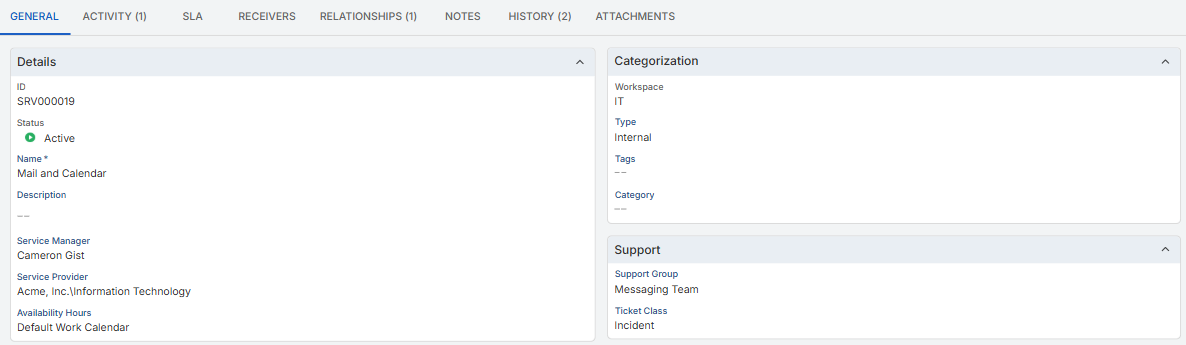
- From its service. While Service Support Group Assignment is on, a ticket that has neither an assignee group nor an assignee gets the support group of its service. The support group is shown on the General tab of the service record; see Services and SLAs.
- From the template of its create action. When a Create Action creates a record, the record starts with the values of that action's template. Put the group in the template to give every ticket that the action creates the same group.
To set the group in a template in the Settings App:
- Open the class's Workflow node, under the class in its business area. The tree's Components folder holds Templates.
- Select the template that the Create Action applies, and click Edit. The action's Template tab shows which template it uses, or holds a custom template used only by that action, which you define on that tab; see Actions.
- In the field grid, click New. In Field Name, pick the class's assignee group field. In Value, choose the group.
- Click OK.
For the template window and its other rules, see Templates and Defaults.
Handle tickets that arrive outside working hours
A ticket created when no member of its group is available stays Unassigned. While the workflow parameter Auto Assignment After Hours Handling is set to Auto-Assign Next Business Day and Assignee Load Balancing Method is not set to Disable Load Balancing, as in the supplied configuration, an Unassigned incident or service request is checked every 15 minutes during the hours of the Default Work Calendar:
- The activity "Auto-Assign Next Business Day" is logged.
- An incident's service is set to Technical Support, whatever service it had, and the incident keeps its assignee group. A service request's service is set to the service of its catalog item.
- Auto-assignment runs again. The ticket becomes Assigned when that sets an assignee; otherwise it stays Unassigned.
This check also picks up a ticket that was reopened without an assignee. You change this parameter on the same Workflow Configuration page as the method.
Check the result
In the Web App, create an incident or a service request without an assignee; see Create a Ticket. When a member of its group is available, a member of the group becomes its assignee, and the ticket is Assigned, or Pending Approval for a service request that its catalog item sends for approval. Otherwise it is Unassigned with the group, and the periodic check runs auto-assignment on it again.
How auto-assignment works
Unless a ticket is created through the API, auto-assignment runs on a new incident or service request:
- When the ticket has neither an assignee group nor an assignee, it gets the support group of its service, while the workflow parameter Service Support Group Assignment is on, as it is in the supplied configuration.
- When the ticket has no assignee, auto-assignment picks one among the active members of the group whose work calendar shows them available for the next 15 minutes. With the workflow parameter Assignee Load Balancing Method set to Least amount of tickets, it picks the member with the fewest incidents, for an incident, or the fewest service requests, for a service request, at Unassigned, Assigned, or In Progress.
- An incident becomes Assigned when its form names an assignee or auto-assignment picks one, and a service request becomes Assigned when auto-assignment picks one. When no member is available, the ticket stays Unassigned with the group.
- Five catalog items, Software Request, Printer Request, Hardware Request, Phone Request, and Network Share Access, send a new service request for approval when its requester has a manager. Such a service request starts as Pending Approval and keeps the assignee and the group that auto-assignment gave it.
See Incident Workflow and Service Request Workflow.
What you have now
New incidents and service requests get a group from their service or from their create action's template, and an available member of that group becomes the assignee, picked with the method Least amount of tickets. Tickets that arrive when no member is available are checked again every 15 minutes during the hours of the Default Work Calendar.