How to close resolved tickets automatically
On this page
Alloy Navigator can close resolved tickets for you: a ticket that stays Resolved or Completed without changes for a set number of days is closed by a trigger, and no technician has to run the close action. An administrator sets the number of days for each ticket class in a workflow parameter. Set it to 0 to leave tickets of that class for technicians to close.
The trigger names, parameter names, categories, and values in this article are those of a new 2026.1 database created with the Default Workflow. An upgraded database need not have this content, and an administrator may have changed it. See Default Workflow Configuration.
Before you begin
- To change parameter values in the Settings App, you need the Basic Administrative Access permission to sign in, and the Workflow Configuration administrative permission for the Workflow Configuration page. See Work in the Settings App and What each administrative permission opens.
- To change them in the Admin Center, you need the Basic administrative access permission to open the Admin Center, and the Workflow Configuration permission for the Workflow Configuration tile. See Admin Center and Settings App.
Know which tickets are closed and when
The triggers Automatically Close Resolved and Automatically Close Completed close the tickets. Each ticket class has a workflow parameter that holds its number of days, in the class's subcategory of the Auto-Termination parameter category:
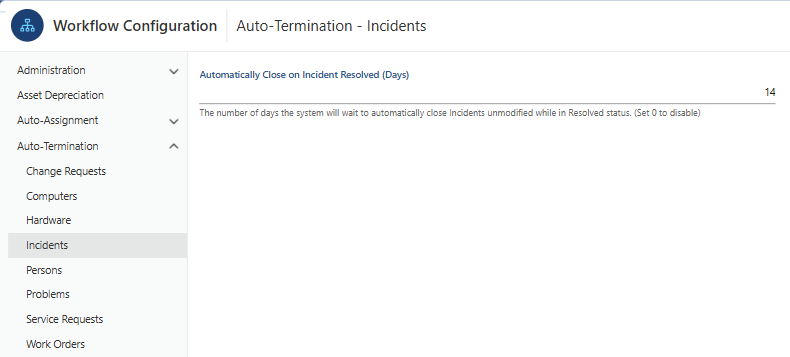
- Automatically Close on Incident Resolved (Days): an incident that stays Resolved without changes for this number of days is closed.
- Automatically Close Problem on Resolved (Days): a problem that stays Resolved without changes for this number of days is closed.
- Automatically Close Service Request on Completed (Days): a service request that stays Completed without changes for this number of days is closed.
- Automatically Close on Change Request Completed (Days): a change request that stays Completed without changes for this number of days is closed.
- Automatically Close on Work Order Completed (Days): a work order that stays Completed without changes for this number of days is closed.
Each parameter is set to 14 in the Default Workflow. A value of 0 turns the automatic closing off for that class.
To review the triggers themselves, see Where triggers are.
Set the number of days
Set the parameters in the Settings App or in the Admin Center. Both change the same current values.
In the Settings App
- In the navigation tree, select Workflow and Business Logic > Workflow Configuration.
- Under the Auto-Termination category, select the subcategory of the ticket class: Incidents, Problems, Service Requests, Change Requests, or Work Orders. The page shows an editor for each parameter of the subcategory, together with its description.
- Enter the number of days. To keep the class from being closed automatically, enter 0.
- Click Apply. Only the current values are written; the initial values stay as defined.
- Repeat steps 2 to 4 for each other class whose number of days you want to change.
If you select another category while values are unsaved, the Settings App asks what to do: Yes saves the values of the category you are leaving, No discards them, and Cancel returns you to that category.
In the Admin Center
- In the Workflow and Business Logic section, click the Workflow Configuration tile.
- In the category tree, under Auto-Termination, open the subcategory of the ticket class: Incidents, Problems, Service Requests, Change Requests, or Work Orders. The page shows one control for each parameter of the subcategory.
- Change the number of days. To keep the class from being closed automatically, enter 0. Save and Cancel appear once you change a field.
- Click Save.
- Repeat steps 2 to 4 for each other class whose number of days you want to change.
For both applications, see Workflow Configuration and Parameters. A changed value reaches a running workflow engine only when the engine notices that the parameters were modified; see Workflow Overview.
Recognize a ticket that was closed automatically
When one of the triggers closes a ticket, it logs the activity "Automatically Closed after N day(s)", where N is the parameter's value, for example "Automatically Closed after 14 day(s)". For a change request, the text has no "day(s)". A problem closed this way gets the closure code Resolution Assumed.
An incident can still be closed by hand before the days pass: run Close Incident on the Resolved incident, choose a Closure Code, and click Submit; see Take an incident from Unassigned to Closed.
What you have now
Tickets that stay Resolved or Completed without changes are closed after the number of days you set for their class, without a technician, and each one records that it was closed automatically. Classes set to 0 are left for technicians to close.
Related topics
- Triggers - what triggers are and how they run.
- Workflow Configuration and Parameters - change parameter values and define parameters.
- Incident Workflow - statuses, actions, and automatic status changes of an incident.
- Problem Workflow, Service Request Workflow, Change Request Workflow, and Work Order Workflow - the automatic status changes of the other ticket classes.
- Default Workflow Configuration - what the Default Workflow contains.