How to create and maintain a customer satisfaction survey
On this page
Once an incident or a service request is done, you can ask its requester to rate the outcome and then review what requesters said. An administrator sets the survey that sends the rating requests and gives technicians the rights that show ratings. The requester rates the ticket in the Self Service Portal. Technicians review the ratings in the Web App. At the end, each rated ticket carries the requester's score and comment, and the ticket lists, the satisfaction reports, and the dashboards show them to the technicians who may see them.
A rating is a score with a comment. A ticket keeps at most one rating, the requester's. When the requester rates the ticket again, the new rating replaces the earlier one, and a rating from anyone other than the requester is not kept.
Before you begin
- The survey described here is the one in a new 2026.1 database created with the Default Workflow. A database upgraded from an earlier version need not contain it, and an administrator may have changed it. See Default Workflow Configuration.
- To change the survey parameters in the Admin Center, your account must hold the Basic administrative access permission. See Admin Center and Settings App.
- To grant the rating rights in the Settings App, you need Basic Administrative Access to sign in and Security Management or Administrative Access to see Users & Security. See Security Roles.
- The survey e-mail goes to the requester's primary e-mail address.
1. Set the survey parameters
A ticket's rating flag says whether the requester may rate the ticket's outcome. The flag stays off until the workflow turns it on, and in a new 2026.1 database created with the Default Workflow, the satisfaction survey does. The survey covers incidents and service requests. The Satisfaction Surveys category of the workflow parameters holds its switches and texts. In that database, they are set as follows:
- Enable Feedback Survey For is set to Service Requests and Incidents. The other choices are Incidents Only, Service Requests Only, and Turn off Built-in Surveys.
- Delay for Sending After Resolution (minutes) is set to 15, and the first, second, and third follow-up delays to 6, 12, and 18 hours.
- The four subject openings are "Please tell us how we did!", "We'd love to get your feedback!", "Tell us about your experience!", and "We haven't heard from you!"
- Enable Graphical Survey Submission is off. The parameter's description says the feature requires the API to be installed and working.
To change them, in the Admin Center:
- Go to Workflow and Business Logic > Workflow Configuration.
- In the category tree, open Satisfaction Surveys. The page shows one control per parameter.
- Change the values you need. Save and Cancel appear once a field has changed.
- Click Save.
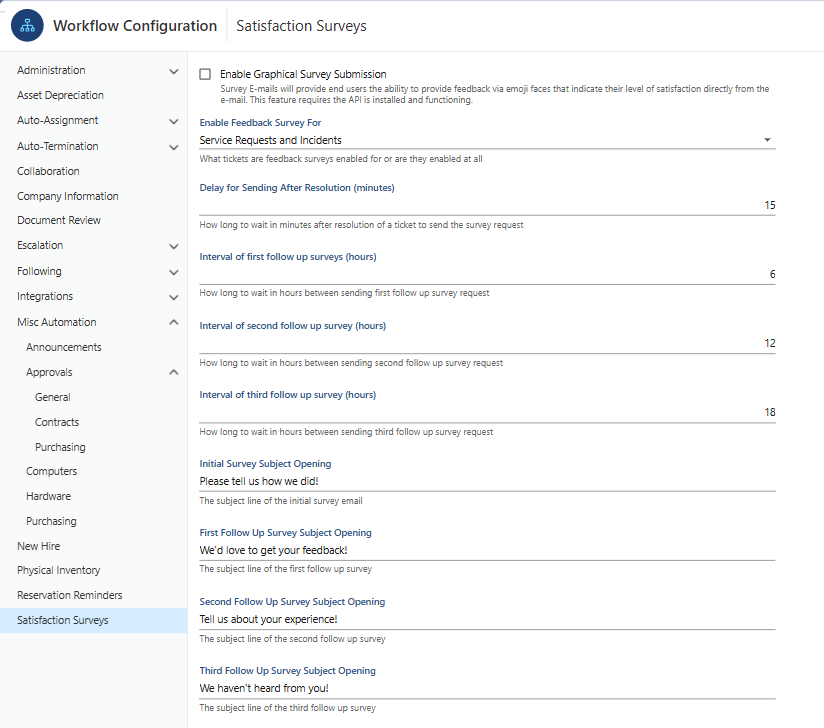
The page does not check the values you enter against the parameters' declared validation rules. For every parameter, see Survey parameters.
2. Let technicians see the ratings
Two permissions, in the Customer Satisfaction Rating group, decide whether the ticket lists show a ticket's rating to a technician:
- View All Ratings: browse and view the ratings of all tickets.
- View Own Ratings: browse and view the ratings of tickets for which you are the assignee.
For a technician without either right, a ticket is still listed, with empty rating columns. In the Settings App:
- Go to Users & Security > Accounts and Roles > Roles.
- Double-click the role that the technicians hold. The Security Role [name] window opens.
- On the Permissions tab, in the Customer Satisfaction Rating group, tick View All Ratings or View Own Ratings.
- Click OK.
To grant the rights in the Admin Center instead, see Security Roles. To check which rating rights an account holds, use the account's Effective Permissions tab; see Check which rating rights an account holds.
3. Let the survey ask the requester
There is nothing to do in this stage: the workflow sends the survey requests. The Incident workflow and the Service Request workflow each have four timed triggers, Send Initial Survey Request and three follow-ups. A trigger fires for a ticket when all of these hold:
- The trigger's delay has passed since the ticket's completed date. Every delay, the follow-ups included, is counted from the completed date.
- The ticket has no rating yet. Once the requester rates the ticket, no further survey request is sent.
- Enable Feedback Survey For covers the ticket's class.
- An incident is Resolved or Closed; a service request is Completed or Closed.
Each survey request turns the ticket's rating flag on, logs an activity on the ticket (for the initial request, "Initial Survey Request sent"), runs Send Push Notification to Self-Service Requester, and sends one e-mail to the requester. While Enable Graphical Survey Submission is off, the initial e-mail carries a GIVE FEEDBACK button that links to the ticket's survey in the Self Service Portal, and the follow-ups carry a button that links to the same address.
On an incident, the actions Reopen Incident and Assign to... turn the rating flag off again. For the graphical e-mail and its one-click rating links, see What a survey request does.
4. Rate the ticket in the Self Service Portal
The requester rates the ticket or the service request. When rating is enabled and the ticket has no rating yet, its page shows a feedback banner with a Rate it! button.
- Open the ticket or the service request.
- Click Rate it!. A five-star rating control and a comment box appear.
- Choose a rating. You can set the stars in half-star steps. The comment box takes a comment on the result.
- Save the rating.
While a rating or a comment is not saved yet, the portal keeps the requester from moving to another portal page. After the rating is saved, the banner shows it, read-only. Its Details toggle shows who rated the ticket, when, and the comment. For finding and opening a ticket in the portal, see Track Your Tickets.
5. Review the ratings in the Web App
Technicians review the ratings in several places:
- The ticket. The General tab of an incident or a service request can show a Feedback panel with the requester's rating as stars, at half-star precision, and the requester's comment, both read-only. On a service request, the panel follows the Performance panel.
- The ticket lists. The Incident and Service Request lists include the requester's rating, on a scale of 0 to 5, and the requester's comment. You see them on a ticket when you hold View All Ratings, or when you hold View Own Ratings and are the ticket's assignee.
- Reports. Four supplied summary reports measure customer satisfaction: Customer Satisfaction Rating (Incidents) and Customer Satisfaction Rating by Technician (Incidents), filed under Incident Management and List, and Customer Satisfaction Rating (Service Requests) and Customer Satisfaction Rating by Technician (Service Requests), filed under Request Management and List. In the Web App's report category lists, the Incident reports are listed only when your roles hold the permission to view any incident and the license permits it; the Service Request reports need the permission to view any service request. See Supplied satisfaction reports.
- Dashboards. A new 2026.1 database created with the Default Workflow contains shared dashboards that show the ratings: IT Service Management KPIs, with the charts Incident Survey Ratings and Technician by Customer Rating, and Service Request Management, with the chart Service Request Survey Ratings. See Supplied satisfaction dashboards.
The reports and the charts read the rating from the ticket lists. A report shows a ticket's rating only when the lists show it to you, and the charts show ratings only to a technician who holds a rating right.
No supplied notification or trigger reacts to a low rating.
Result
Once an incident is resolved or closed, or a service request completed or closed, its requester is asked to rate it, with up to three follow-ups until a rating arrives. The rating is kept on the ticket with the requester's comment. The ticket's Feedback panel can show the rating, and technicians see the ratings that their rating rights cover in the lists, in the satisfaction reports, and on the dashboards.