Home screen
The Home screen is the starting point of the Alloy Navigator mobile app. From here, you can open the areas available to you, access your favorite areas, and view notifications about important events.
By default, the Home screen shows the All tab that contains object areas grouped into sections. Tap an area to open the corresponding list of records.
NOTE: The sections and objects you see depend on your permissions and mobile app configuration. If an object is disabled or unavailable to you, it does not appear on the Home screen. For the list of objects available in the Alloy Navigator mobile app, see Supported objects.
My Work
Use My Work to quickly open records related to your work.
-
Starred: Shows records that you marked with a star in the Web App. You can view starred records in the mobile app, but you can add or remove stars only in the Web App.
Service Desk
Use Service Desk to work with Service Desk records, such as
You can also open the Knowledge Base to browse articles by type, hardware, manufacturer, operating system, software, and other available categories.
IT Assets
Use this section to view and manage IT assets and related records, such as computers, contracts, or consumables.
Equipment Lending Library
Use this section to track items that users can borrow and to review equipment reservations.
Mobile app interface
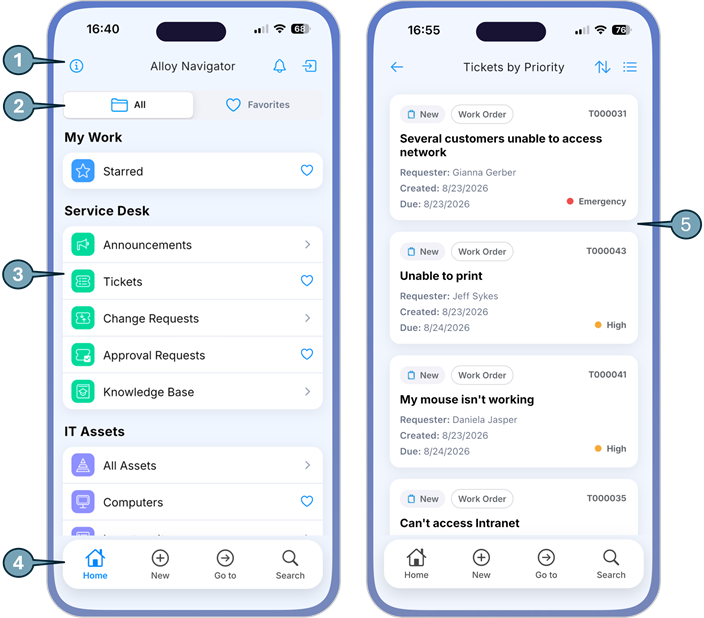
Elements of the mobile UI:
| Number | UI Element | Description |
|---|---|---|
| 1 | Module Menu | Provides access to options available for the current screen, such as switching views, refreshing data, opening notifications, or signing out. |
| 2 | Home tabs | Enable you to switch between all available object areas and your favorite object areas. |
| 3 | Object areas | Provide quick access to Alloy Navigator |
| 4 | Standard Toolbar |
Provides quick access to common actions, such as returning to the Home screen, searching for records, creating new records, opening records by ID, and viewing related information. |
| 5 | Data grid |
Displays records in a table and provides access to views. For details, see Data views. |
INFO: For details, see Data views, Switching between views, Working with approvals.
NOTE: Your Alloy Navigator Express administrator may have disabled some objects in the Mobile App. The home page does not show links to disabled objects.