Hiding and showing system columns in data views
Introduced in 2024.2
This article explains how to hide or display system columns in data views.
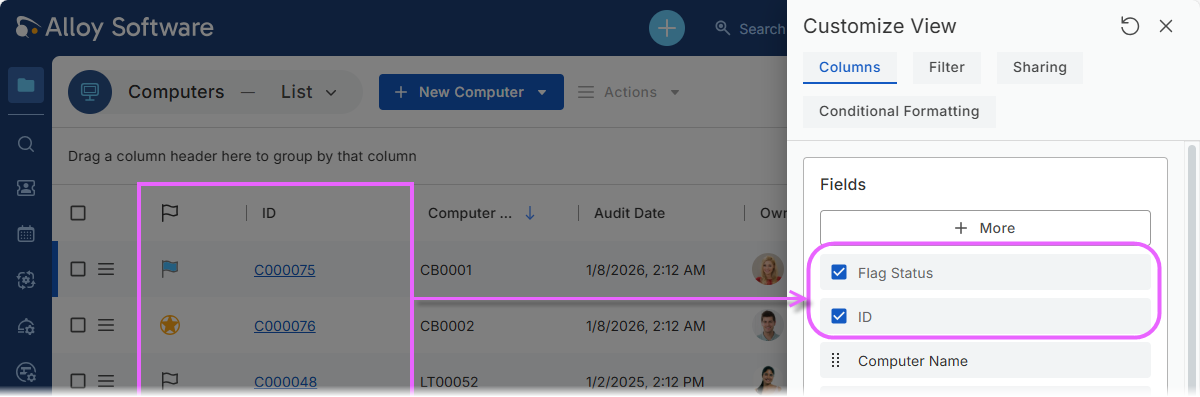
By default, all tabular data views show two system columns on the left side. These columns provide key information about each record and cannot be removed. However, you may want to hide them to make the view cleaner and leave more space for other fields.
System columns that can be hidden:
-
Flag Status: Displays personal flags using colored labels and a star marker to help prioritize and track records. If you do not use personal flags, you can safely hide this column.
INFO: For details on flags, see Marking records with stars and flags)
-
Record Identifier: Identifies records in lists. The column name varies by object class: ID, Ticket, or Title. This column is usually kept visible, but you may want to hide it in lists where the ID is not needed, such as lists of computers or hardware, where you navigate by name, serial number, or asset tag instead of by ID.
NOTE: Hiding this column prevents copying sharable links directly from the data view.
To hide or show system columns
-
Open the data view you want to modify.
-
Click the gear
 button in the upper-right corner above the data grid to open the Customize View pane.
 -
Select the Columns tab.
-
Locate the system columns Flag Status and ID (or Ticket, depending on the object class).
-
Clear the check box next to a column to hide it, or select the check box to display it.
-
Click Save, Save As, or Apply to update the data view.
IMPORTANT: These changes affect only the current data view and do not modify other views.