Access the Self Service Portal
This page explains how to open the Self Service Portal, sign in, register a new account if needed, and change your password and why logging out matters - especially when using a shared device. You can also find information on how to get the mobile app to access support wherever you are.
Where to find the portal address
Your IT department will provide the address of the Self Service Portal. It usually looks similar to one of these examples:
- https://your-company.alloyservice.com/
- https://your-company.alloyservice.com/hd/
- https://your-company.com/hd/
We recommend saving the link to your bookmarks so it’s always easy to find.
Sign in and out
Some areas of the portal, like the Knowledge Base, may be available without signing in, depending on your organization’s settings. However, to access all features of the portal, you need to sign in. You can sign in using either:
-
Your user name and password, provided by your administrator (if your organization uses Password Authentication), or
-
Single Sign-On (SSO), if your company has Microsoft, Google, or another identity provider configured by your administrator.
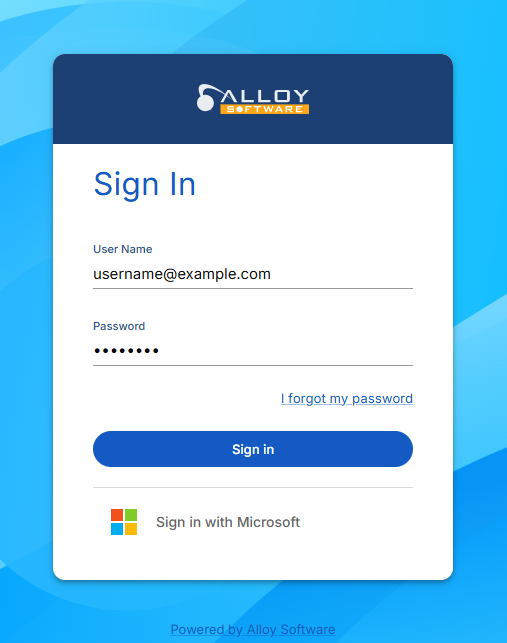
To sign out, click your profile icon in the top-right corner and select Log Out. Always log out when you’re finished, especially if you’re using a shared or public computer. This helps keep your account and data secure.
Self-registration
If your organization allows self-registration, you’ll see a Register link on the sign-in page. Click it to open the registration form, fill in the required details, and make sure to use your work email address.
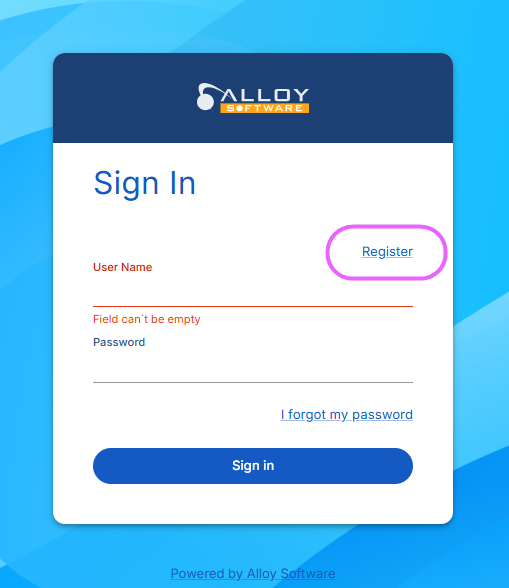
After submitting the form, your request will be sent for administrator approval, and you’ll receive an email notification once your account is activated.
About your password
If you sign in using a user name and password (Password Authentication), you can change your password at any time:
-
Once signed in, open your profile and update your password there
-
On the sign-in page, click I forgot my password to reset it
NOTE: If your organization uses SSO, your password is managed outside the portal, and you won’t need to change it here.
Alloy Self-Service mobile
You can use the Self Service Portal from your mobile device with the Alloy Self-Service mobile app. All portal features are available in the app, so you can manage your requests, tickets, and knowledge articles on the go, under the same account you use for the web-based Self Service Portal.
To install the app, simply scan the QR code below with your mobile device:
| Alloy Self-Service for iPhone (App Store) | Alloy Self-Service for Android (Google Play) |
|---|---|
|
|
|


IMPORTANT: The mobile app uses a different address than the Self Service Portal, often ending with /api. Your administrator will provide a QR code to make signing in easier.