What's new in version 2026.2
November 2026
Welcome to the Fall 2026
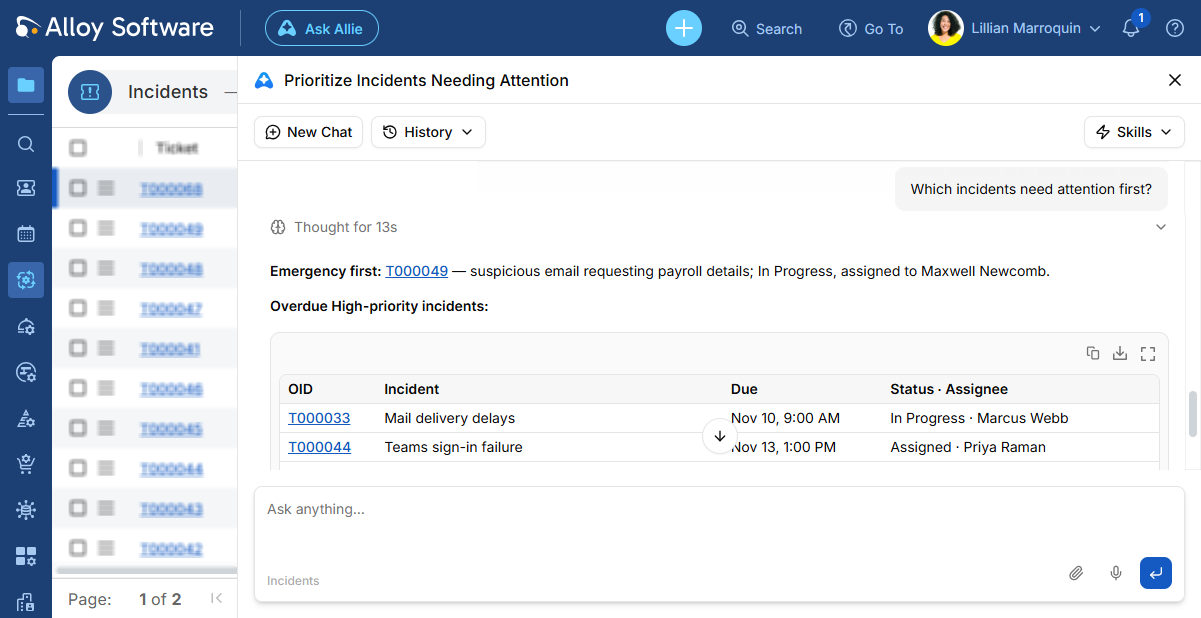
Introducing Allie: Your AI assistant in Alloy Navigator
Meet Allie, the new AI assistant built into Alloy Navigator. Allie understands the context of your work, so you can ask questions in plain language, find information, analyze your IT data, and get help with everyday tasks.
Allie can help you:
-
Find answers: Ask questions and get information relevant to your work.
-
Analyze your data: Explore tickets, requests, assets, and other IT data, identify patterns, and create reports and visualizations.
-
Get work done: Carry out tasks and capture knowledge with help from built-in skills.
Allie draws on model knowledge and your organization's internal knowledge to help you investigate issues and find solutions in knowledge base articles and past
You can extend Allie's capabilities with:
-
Web search for current information from websites you specify.
-
Model Context Protocol (MCP) servers to connect Allie to other systems and services. Enable the included Alloy Docs MCP server so Allie can answer questions about using and configuring Alloy Navigator based on official documentation. You can also add connections to third-party MCP servers for systems your organization uses.
-
Custom skills to guide Allie through multi-step tasks that follow your organization's processes.
Connect Alloy Navigator to the AI tools you already use
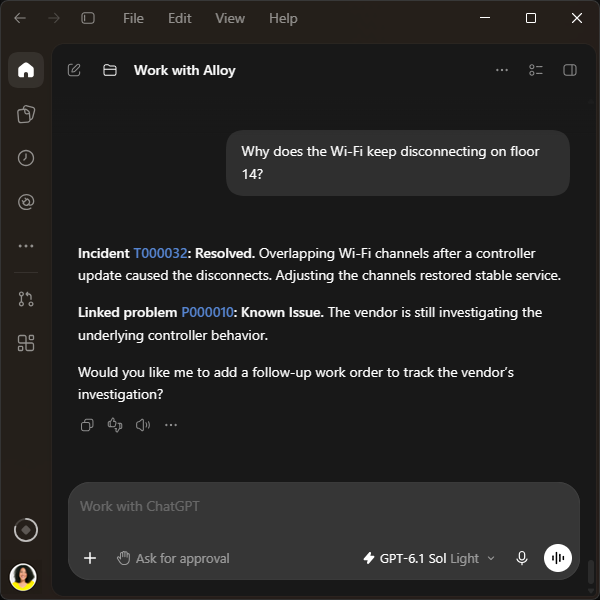
The new MCP integration lets compatible AI tools, including ChatGPT, Claude, and Microsoft Copilot, work with Alloy Navigator data and perform supported actions on your behalf.
MCP server for IT teams
Ask your AI agent to:
-
Investigate a ticket, find relevant information about assets and services, or analyze your team's workload
-
Gather information from Alloy Navigator, compare past
-
Create and update tickets, assign work, and record resolutions
Do it all directly from the conversation, without opening Alloy Navigator.
MCP server for end users
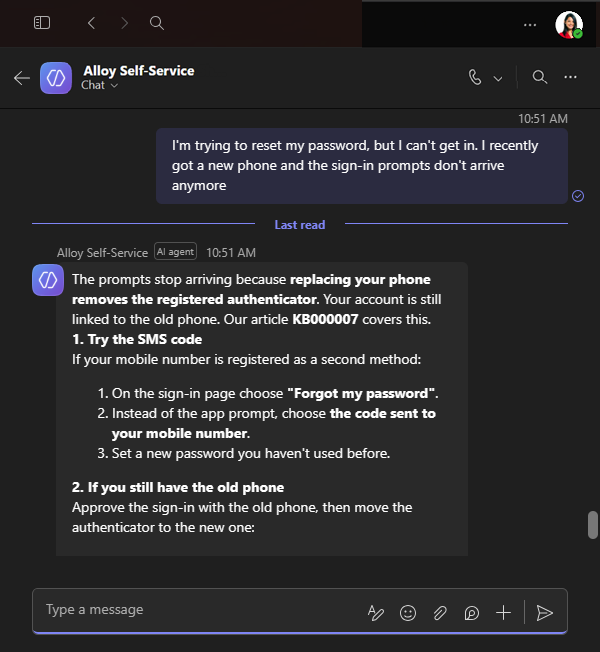
Employees can get support through the AI tools your organization already uses, without opening the Self-Service Portal.
They can:
-
Describe their issue and get suggested solutions based on the knowledge base
-
Submit a ticket, check its progress, and provide additional information
-
Request items from the service catalog, reserve equipment from the library, and check approvals waiting for them
For example, your organization can connect an AI agent in Microsoft Teams to the Self Service Portal through MCP so employees can get support directly in the conversation.
Expanded AI search
New search capabilities bring relevant information into AI responses and workflows.
Web search
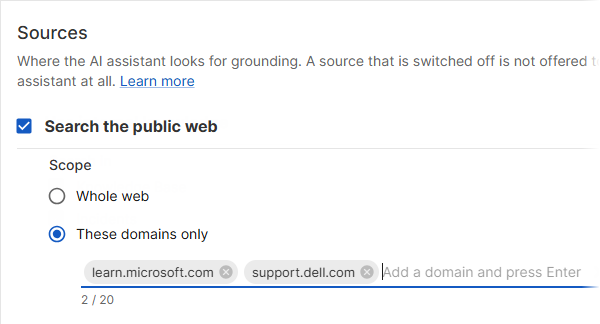
Alloy Navigator’s AI can now search web sources for information about software patches, known issues, and vendor guidance, alongside model knowledge and your organization’s internal knowledge.
You can enable web search separately for Allie, for individual workflow actions that use AI Control, and for the AI Assistant in the Self-Service Portal. You can also limit searches to specific websites.
Semantic search for AI workflows
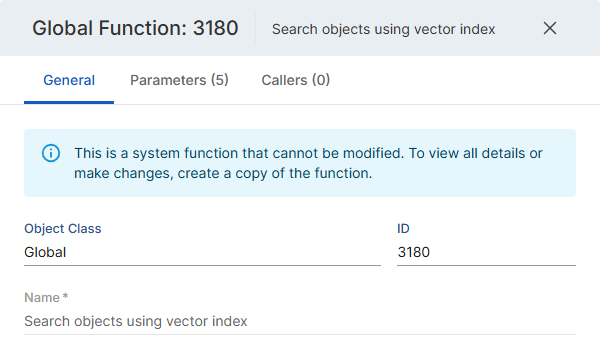
The new global workflow function Search objects using vector index (#3180) uses semantic search to find incidents and knowledge base articles in Alloy Navigator’s vector index based on meaning rather than exact keywords.
You can use it in custom workflows, for example, to check incoming issue descriptions against existing incidents and help identify potential duplicates.
Monitor and configure AI
New logs and configuration options help you monitor AI activity and adapt AI features to your organization's processes.
AI activity logs
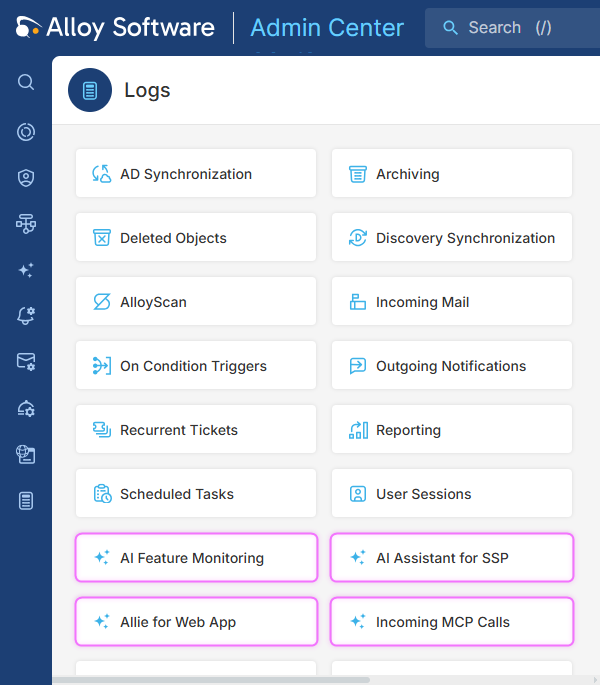
AI activity logs in Admin Center help administrators identify unhelpful answers, slow requests, and failed actions so they can refine prompts and AI configuration.
Dedicated logs cover:
-
Allie for Web App: Conversation history and request details, such as tool calls, results, and errors.
-
AI Feature Monitoring: AI writing assistance requests and AI-powered workflow actions, with response times, results, and user feedback.
-
Incoming MCP Calls: Tool calls from external AI clients, with user and client details, the related object, execution time, and error details for failed calls.
-
AI Assistant for SSP: The existing log of support conversations, user feedback, and related knowledge searches.
You can turn logging on or off separately for AI features and each AI assistant.
AI model selection
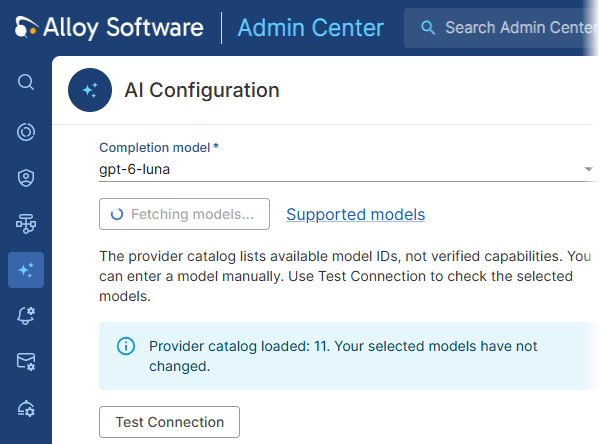
You can now retrieve the list of available models directly from your AI provider, and select newer models without waiting for an Alloy Navigator update or entering model names manually.
Your existing model selection is preserved during the upgrade. Manual entry remains available.
AI provider options
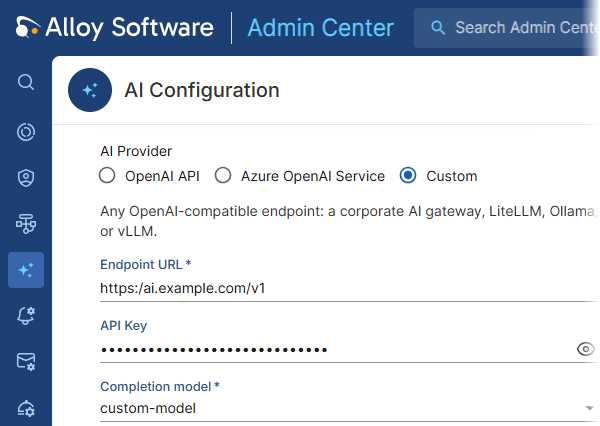
In addition to the OpenAI API and Azure OpenAI Service, Alloy Navigator now supports other providers with an OpenAI-compatible API. Organizations can choose self-hosted models or alternative cloud services that fit their infrastructure, data privacy requirements, and budget.
Connections can also use OpenAI-compatible gateways such as Bifrost or LiteLLM.
Manage workflows in your browser
Workflow configuration is now part of the Admin Center. Administrators can make workflow changes in their browser without installing the desktop Settings App or connecting it directly to the database.
Create and customize workflow actions, steps, forms, and triggers directly in your browser. You can also manage reusable components, such as functions and notifications, and configure scheduled task operations.
To get started:
-
Open the Admin Center.
-
Go to Workflow and Business Logic and select the workflow item or component you want to configure.
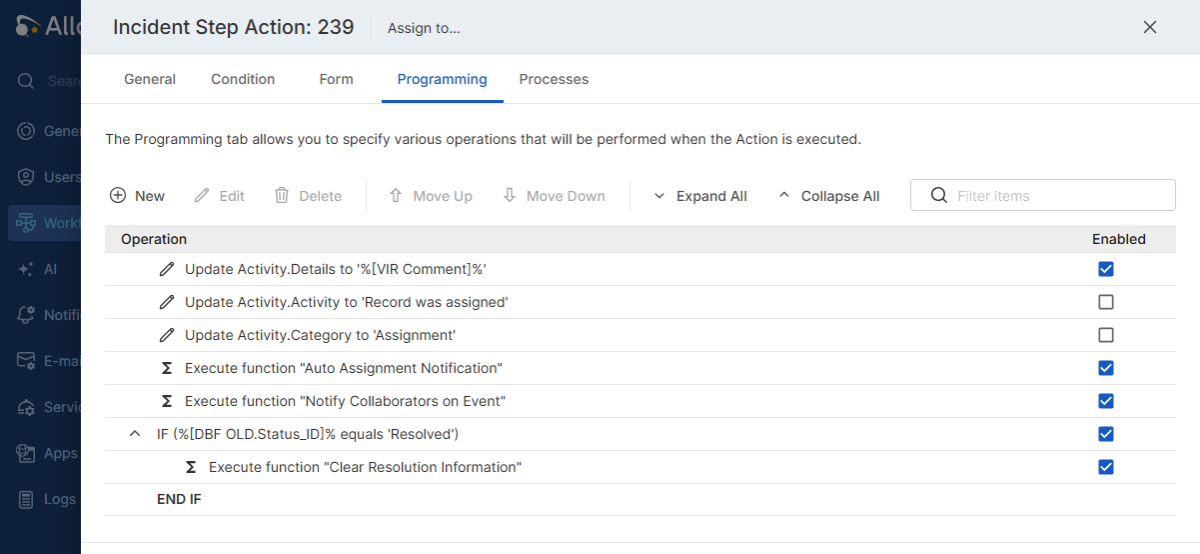
Workflow settings remain available in the desktop Settings App, so you can move to Admin Center at your own pace.
Admin Center: More flexibility and visibility
Alongside workflow configuration, new tools in Admin Center make it easier to maintain and share your customizations.
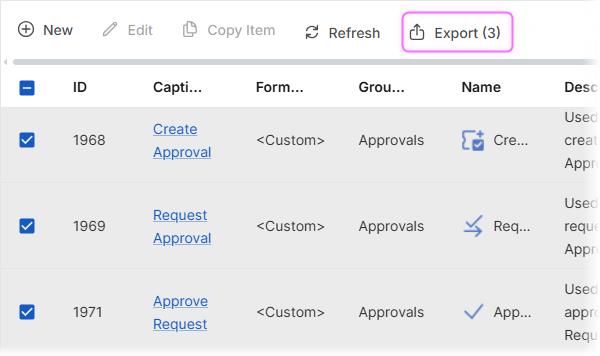
Export selected settings
Admin Center now supports exporting selected settings without exporting the entire configuration. This makes it easier to move customizations between environments and exchange settings with our Support team.
See who created and last modified workflow items
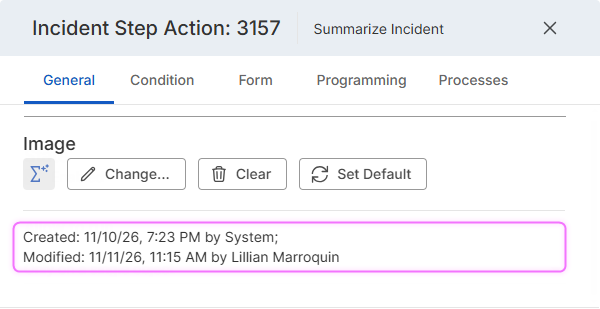
Workflow item properties in Admin Center and the desktop Settings App now show who created the item, who last modified it, and when. These details help administrators investigate workflow issues, review customizations, and identify who to contact before making further changes.
After the upgrade, existing workflow items show System as their creator and last modifier, with the upgrade date as both the creation and modification date.
Tailor each Self-Service Portal to its audience
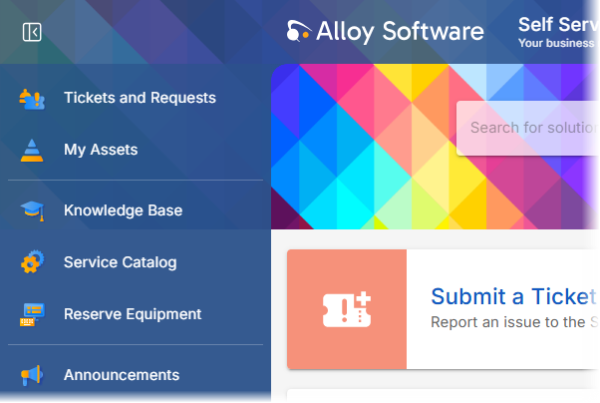
Organizations can now provide department-specific self-service within one Alloy Navigator environment. For example, an HR portal can show HR services and guidance, while an IT portal focuses on IT support.
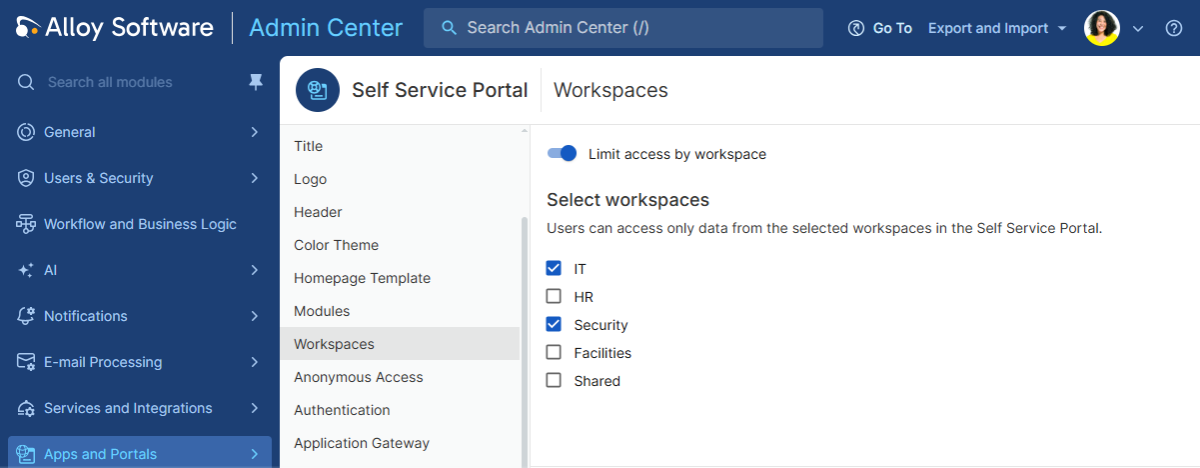
Assign one or more workspaces to each portal to automatically show relevant service catalog items, knowledge base articles, announcements, and equipment library items.
To get started:
-
In the Admin Center, open the portal's Workspaces settings under Apps and Portals > Self Service Portal.
-
Enable Limit access by workspace and select the workspaces whose content should appear in that portal.
More flexible email processing
Organizations can adapt automated email handling to their needs and reduce mailbox licensing costs.
Microsoft 365 shared mailboxes
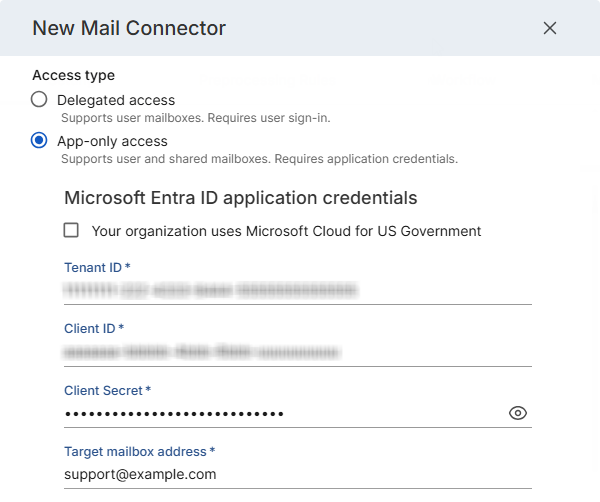
Organizations can now use Microsoft 365 shared mailboxes for automated email processing instead of maintaining separately licensed user mailboxes. Alloy Navigator can receive incoming messages, send replies and notifications, and retrieve emailed audit data. App-only access uses application credentials without interactive user sign-in.
Licensing: Shared mailboxes can hold up to 50 GB without a separate mailbox license. Additional capacity and certain advanced features require licensing. See Microsoft's licensing requirements.
Mail Connector matching modes
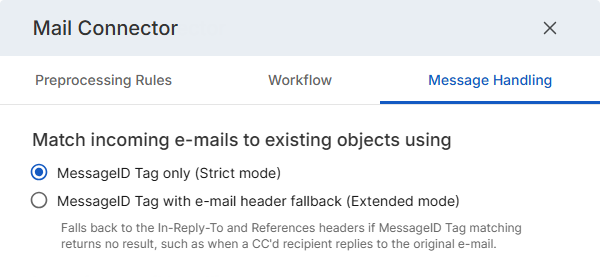
Administrators can now choose a matching mode for the Mail Connector that fits their email workflow and helps prevent unintended updates to existing tickets.
Strict mode matches replies using only the Alloy MessageID Tag in notification emails.
Extended mode first checks the Alloy MessageID Tag, then falls back to email conversation headers if no match is found. This can match a CC'd recipient's reply to the original email that created the ticket.
Extended mode retains the behavior introduced in version 2025.1.1. Upgrades preserve existing matching behavior; new Mail Connector jobs use Strict mode by default.
Other improvements and resolved issues
Interface improvements
-
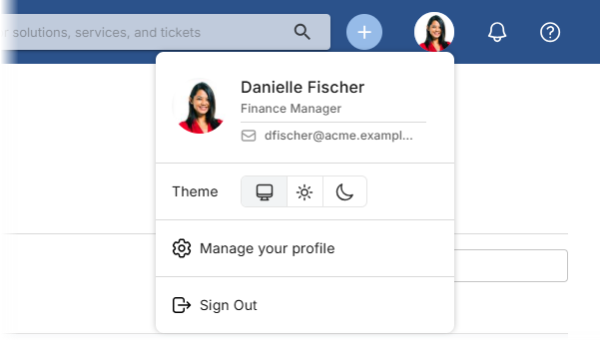
User menu and account information
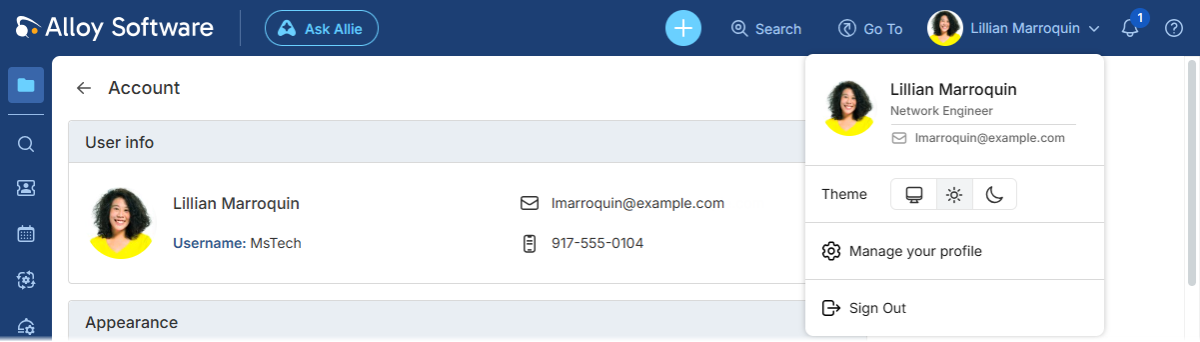
The redesigned user menu in Alloy Navigator shows user details and lets users switch themes without opening their account settings. The new Account page brings user information and settings together and displays the signed-in username, making it easier to identify the active account and troubleshoot access issues. These improvements also extend to the Admin Center.
-
Clearer detail forms
The updated layout makes information more compact and easier to read.

-
Consistent loading indicators
Consistent loading indicators make it easier to recognize when pages, tabular data views, widgets, and forms are loading or updating.
Admin Center improvements
-
New shortcut for Admin Center search
The / (slash) shortcut now opens Admin Center search, replacing Ctrl+K and matching the Quick Filter shortcut in Alloy Navigator and the Self-Service Portal.
-
Fixed an issue on the Workflow and Business Logic overview page where installations with an ITAM-only license could request workflow settings for unlicensed modules. The overview now shows only the workflow groups available under the license.
-
Fixed an issue where saving an SSO provider’s client secret in the Admin Center could corrupt the value and prevent the Alloy Navigator sign-in page from opening. If affected, re-enter the correct client secret after upgrading.
Tabular data views
-
Clearer grouped data views
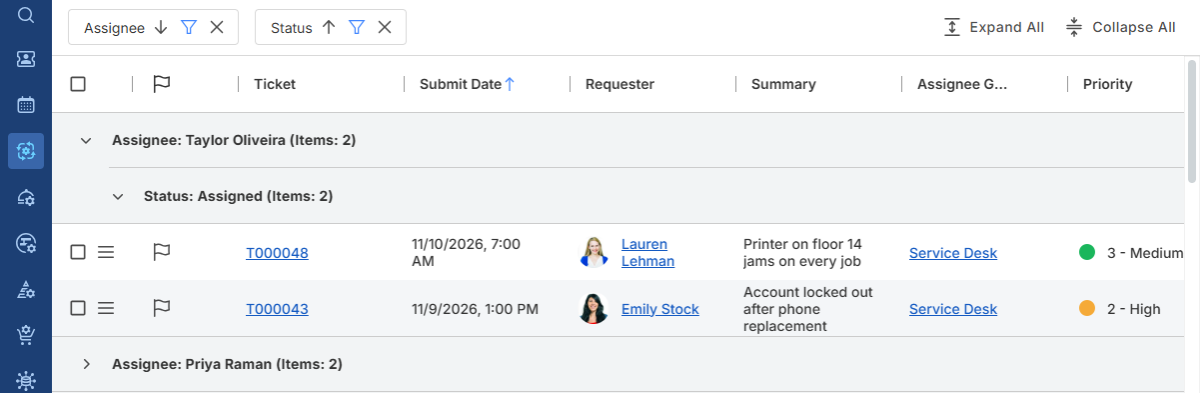
Clearer indentation and separators in grouped tabular data views make it easier to distinguish groups and subgroups and see which records and totals belong to each level.
-
Clearer record previews
Updated alignment and spacing make record details easier to scan in both the right and bottom preview panels.
-
Better performance in large data views
In addition to your personal record limit, tabular data views now have a 50,000-record threshold to help keep your browser responsive. If more records match, you can narrow the results with filters or confirm that you want to load them all. Loading all matching records pauses automatic refresh and may slow down the system for other users.
Analytics and dashboards
-
Focused analytics tables
Use the new sorting and Top X options to show just the records you want to see, such as the five tickets due soonest. These options apply to the table in Analytics and its dashboard widgets.
A widget shows up to 100 rows. Set Top X below 100 to show fewer rows. If more records match your filters than the widget can show, a plus sign (+) appears in its header.
-
Resolved an issue where the Open records in new tab/window profile setting could change the label of the command for opening records from the Analytics section and analytical dashboard widgets, even though the records always opened in a new tab. The command now consistently reads Open in new tab.
-
Fixed an issue where the My Ticket Summary widget included closed tickets in its counts. The widget now matches the My Tickets views it opens by counting only active (non-closed) tickets.
Service Support
-
Resolved an issue where an invalid control character in a ticket description could prevent AI-powered workflow action forms from opening. This could occur when the ticket was created from an incoming email.
Purchasing
-
Resolved an issue where vendor details could be blank or outdated when printing a purchase order using Print > Standard Purchase Order. The selected vendor’s details are now saved automatically with the order and appear correctly in the printed report.
Software Asset Management
-
Email addresses in software license allocations
Quickly identify software license assignees without opening Person records. On the Allocation tab of a software license, the new Primary Email and Owner Email columns show the email addresses of the assigned users or device owners.
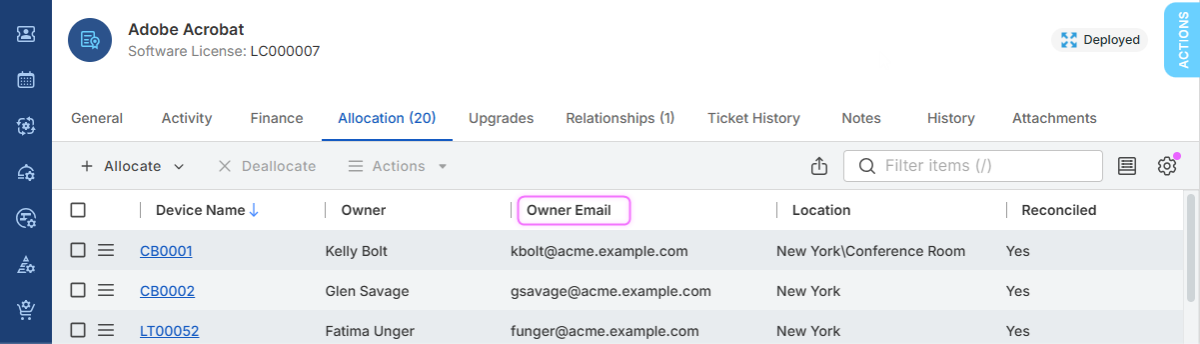
These columns are not shown by default; add them to the view as needed.
-
Fixed an issue where the Allocation tab of a software license showed a device list instead of user allocations when a custom license policy used By User tracking. User allocations now display correctly.
Updated Audit Tools
-
Alloy Audit Tools has been updated to version 2026.2.0. This update introduces a native 64-bit Windows audit agent for more complete data collection on 64-bit systems, along with other improvements and bug fixes.
For a complete list of changes, see Audit Tools Update Release Notes.
Self Service Portal
-
Fixed an issue where typing a new search after selecting a collaborator could append it to the previous search text. The previous text is now selected when you close or reopen the drop-down, so you can type a new search without clearing the field manually.
-
Resolved an issue where printing a ticket from the browser could cut off its contents after the first page. Long descriptions and loaded history entries now print across multiple pages, including when you save the ticket as a PDF.
Platform updates
-
.NET 10 support
The Admin Center, the Self-Service Portal, and the API now run on .NET 10, a long-term support (LTS) release, extending the platform support lifecycle and access to Microsoft security updates.
-
Updated Node.js runtime
The Self-Service Portal now bundles Node.js 24.22.2 in a folder whose name stays the same across Node.js updates. If you run Alloy Navigator on-premises and use a custom Node.js path or have scripts that reference the old bundled folder, see Upgrade considerations: Self-Service Portal Node.js path before upgrading.
Miscellaneous
-
Updated sample data
The sample dataset for evaluation and test databases now includes more records and updated examples of hardware, software, and everyday IT work.
-
Fixed an issue where the Import tool could fail to import date and time values when the system’s short date format used a month name or abbreviation, as in
18-Jul-26. Date and time values now import correctly regardless of the system’s short date format.