What's new in version 2026.1.1
September 2026
Version 2026.1.1 is a maintenance release
AlloyScan Sync
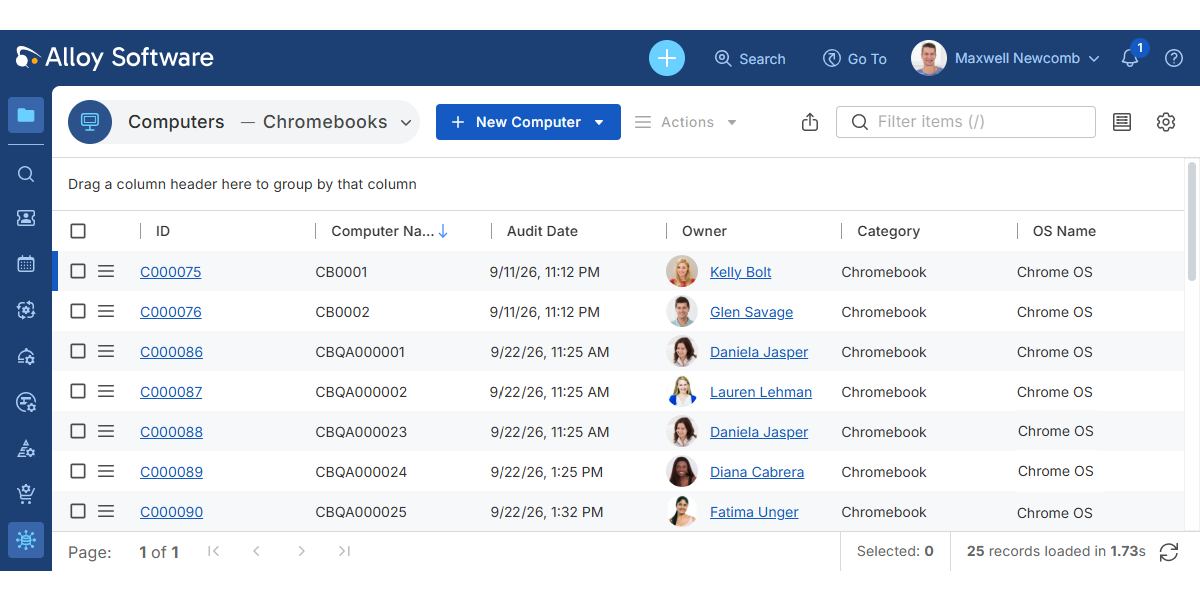
Alloy Navigator now supports importing additional device types from AlloyScan:
- Chromebooks discovered through the Google Directory integration
- iPhones, iPads, and Apple TVs discovered through the Jamf integration
Imported devices are automatically created as Computers or
Upgrade note: To import these additional device types after upgrading, update your existing AlloyScan Sync workflow. Contact our Support Team for assistance.
INFO: For instructions on setting up the Google Directory and Jamf integrations, see AlloyScan User Guide.
AI capabilities
-
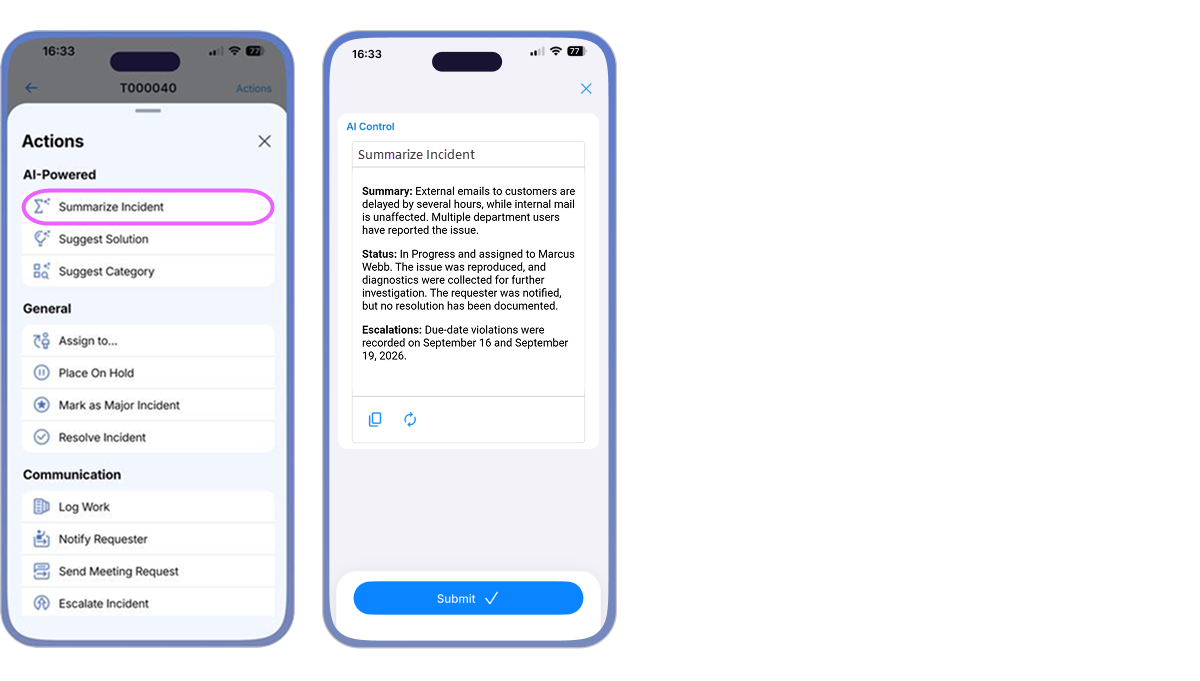
Built-in AI-powered workflow actions for Service Support tickets, such as Summarize
Upgrade note: These actions are enabled for mobile access by default in new installations. When upgrading an existing installation, update the workflow to make them available in the mobile app. Contact our Support Team for assistance.
-
The Copy button for AI-generated results now preserves formatting, including paragraphs and bold text, when you paste the content into a rich-text field, email, or chat editor that supports this formatting.

-
Added support for OpenAI's new GPT-6 model family, giving you more control over the quality, speed, and cost of AI responses.
TIP: To use a newer model, administrators can enter its model ID (for example, gpt-6-luna) directly in the Completion model field (Admin Center: AI Integration > AI Configuration). For details, see Supported AI models for AI integration.
Dashboards
-
Fixed an issue where a dashboard containing a legacy chart widget could fail with a 404 error. This occurred when the widget's filter name ended with an extra space.
TIP: We recommend replacing legacy dashboard widgets with new analytics widgets wherever possible. For details, see Help: Working with dashboards.
Import Wizard
-
The Import Wizard now supports matching existing Computers,
-
Fixed an issue where the Import Wizard assigned new records to the system Workspace instead of the Workspace mapped from the source data. New records, including Organizations, Persons, and Hardware, are now assigned to the mapped Workspace if it exists; otherwise, they are assigned to the system Workspace.
Recurrent Tickets
-
Fixed an access violation error that could occur when multiple Recurrent Ticket jobs ran at the same time.
-
Fixed an issue where saving a Recurrent Ticket job could swap the day and month in its start date when the browser used a day-first date format, such as DD/MM/YYYY.
Project Management
-
Fixed an issue where logging time on a Project Task caused the Project’s Cumulative Time Spent to exclude time logged directly against the Project. The total now includes time logged for both Project activities and Project Tasks.
Service Catalog
-
Fixed an issue where unsupported .ico files could be selected as pictures for Service Catalog Items, causing an error when saving. File selection now respects the documented image formats: .bmp, .jpg, .jpeg, and .png.
Alloy Discovery and Audit Tools
-
Alloy Audit Tools has been updated to version 2026.1.1. This update supports macOS Golden Gate (version 27) and includes several fixes for macOS and Windows inventory analyzers and the Audit Data Viewer. For a complete list of changes, see Audit Tools Update Release Notes.
-
Fixed an issue where Alloy Discovery reported memory modules larger than 32 GB as 32 GB, resulting in incorrect total memory capacity for Windows computers.
Data Views
-
The Members section on the Group details page now displays a warning when the current view does not reflect the order saved in the Group Members Order dialog. This can occur when the view is sorted by another column or no longer includes the Rank column. The warning explains how to display the saved order; the saved order itself remains unchanged.
Self Service Portal
-
Resolved issues with filters that control which Knowledge Base articles
Workflow Management
-
Fixed an issue where dependencies left behind after deleting a Scheduled Task prevented deletion of workflow configuration parameters previously referenced by that task.
API
-
Service Requests created through the API using the Submit Request action are now automatically linked to the Service Catalog Item specified in the request URL. The item no longer needs to be specified separately in the request body.