Sharing links to objects and activities
Introduced in 2024
Updated in 2025.2
This article describes how to copy and share direct links to Alloy Navigator Express objects and activities. You can copy a link from a data view, an object detail form, or an individual activity, then paste it into chat, email, documentation, or another application. The recipient can use the link to open the exact item without searching for it.
NOTE: Recipients can open shared links only if they have access to Alloy Navigator Express and permission to view the referenced object based on their access rights and workspace membership.
Copy links from data views
To copy a link from a data view:
-
Open any data view.
-
Hover over the object identifier (for example, a ticket number or user name).
-
Click the Copy icon (
 ) that appears next to the identifier.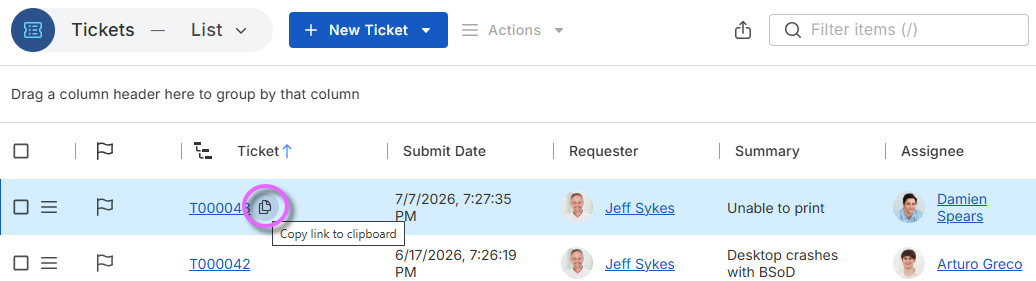
- Paste the link into the destination application.
Copy links from object detail forms
You can also copy the link to the object number its detail form:
-
Open the object.
-
Hover over the object number in the header.
-
Click the Copy icon (
) that appears next to the object number.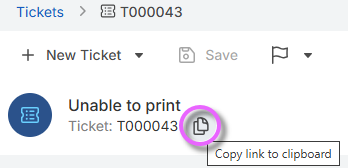
- Paste the link where you want to share it.
Include object details in shared links
By default, shared links use the object identifier as the link title. To include additional context, hold Shift while clicking the Copy icon () on the object detail form.
The generated link includes both the object identifier and its title or summary.
For example, hold Shift while clicking the Copy icon next to the
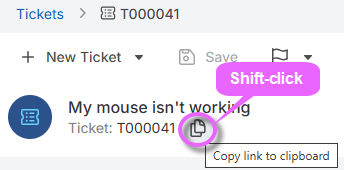
This creates the following link: T000041 My mouse isn't working.
Copy links to activities
You can also share links to individual activities within an object. To copy a link to an activity:
-
Open the object.
-
Locate the activity you want to share.
-
Click the the Copy icon (
) in the activity toolbar.
- Paste the link into the destination application.
Recipients who open the link are taken directly to the selected activity within the object.
NOTE: Recipients can open shared links only if they have permission to access both Alloy Navigator Express and the referenced object or activity. Access is determined by their assigned permissions and workspace membership.