Signing in to the Mobile App
To sign in, first connect the mobile app to your Alloy Navigator Express instance, and then enter your Alloy Navigator Express credentials.
IMPORTANT: For on-premises deployments, the API module must be installed and configured before users can sign in. Cloud customers do not need to install the API module.
Connect to Alloy Navigator Express
On the first sign-in screen, do one of the following:
-
Enter the Server URL, and then tap Go.
-
Tap Scan QR code, and then scan the QR code provided by your Alloy Navigator Express administrator.
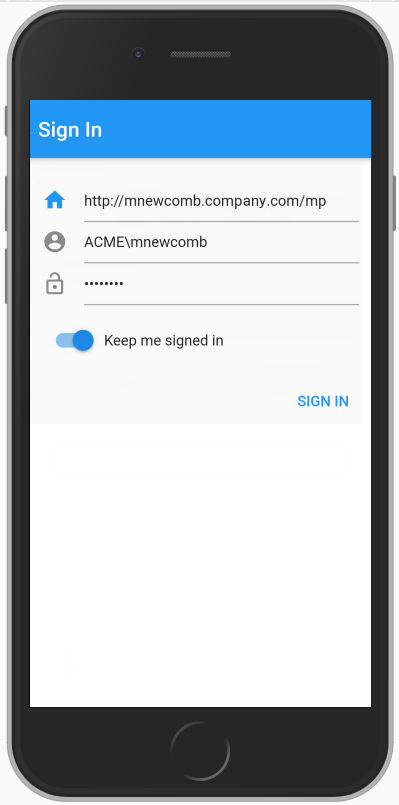
NOTE: Ask your Alloy Navigator administrator for the Server URL or QR code.
Enter your credentials
After the app connects to your Alloy Navigator instance, the credentials screen appears.
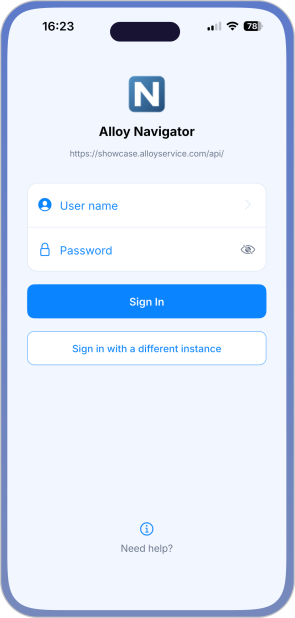
-
Enter your user name.
-
Enter your password.
-
Tap Sign In.
To connect to another Alloy Navigator instance, tap Sign in with a different instance.
NOTE: To sign in under a Windows account, specify your username as <Domain name>\<User account name> and provide your Windows domain password.
Signing out
To sign out from the Mobile App, in the Module Menu tap Sign Out.