Viewing Outlook availability in the Team Calendar
Introduced in 2026
The Team Calendar can display Outlook meetings and events for all users, helping managers and team leads understand availability across the team.
NOTE: For the Outlook calendars to appear in the Team Calendar, your Alloy Navigator administrator must enable and set up Microsoft 365 integration using the Admin Center. For detailed instructions for administrators, see Configuring integration with Microsoft 365.
Outlook events are displayed as people's statuses for these events, such as Busy, Tentative, or Out of Office, on their schedules. When you hover over an entry, its status and exact timing are shown.
Outlook events in the Team Calendar are read-only and cannot be opened or edited.
IMPORTANT: Before you can use Outlook in the Team Calendar, make sure you are signed in to your Microsoft 365 account.
Show or hide Outlook events
To control whether Outlook events are displayed:
-
Go to Calendars > Team Calendar.
-
In the right sidebar, under Other calendars, select or clear the Outlook checkbox.
IMPORTANT: To display a team member's availability, ensure their Microsoft 365 email address is specified in their Person record as the primary email.
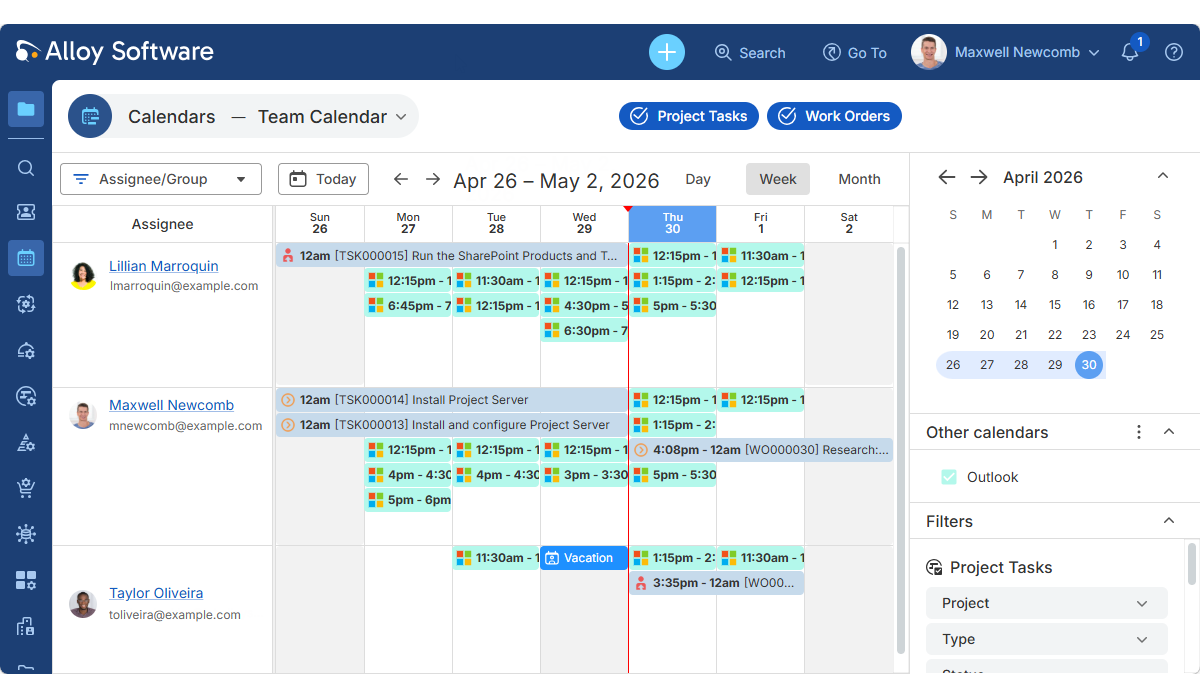
Edit Outlook calendar settings
You can rename the Outlook calendar and change how its entries appear:
-
In the right sidebar, under Other calendars, click the options menu (three dots) next to Outlook.
-
Select Edit.
-
Update the calendar name and choose a color for its entries.
-
Click Save.
To remove the Outlook calendar, select Delete from the same menu.