Following tickets and other items
Introduced in 2021
Following means subscribing to updates about items that interest you, even if you are not directly involved. For example, you might want to track a ticket where you are neither the requester, the assignee, nor a collaborator, but still want to stay informed about its progress and updates. In Alloy Navigator, you can follow tickets, knowledge base articles, contracts, and other items to keep up with changes and new activity. This article explains how to follow and unfollow items, and how to view everything you are currently following.
Following items
When you follow an item, a special "Following / Followed by" relationship is created between you and that item. Your Person record appears on the item's Related Object tab, and vice versa. This relationship makes it easy to find the items you follow and actively drives the workflow engine to notify you of any updates or new activity related to the item.
This relationship can be created automatically when you start working with an item. For example, the system automatically subscribes you to tickets where you are the assignee or requester, or to knowledge base articles where you are the author or owner. Both this automatic linking and the events that trigger follower notifications can be managed by your administrator.
FOR ADMINISTRATORS: To set up the workflow for following items, fine-tune the relevant workflow parameters in the Admin Cente (Web App > Admin Center > Workflow and Business Logic > Workflow Configuration > Following), and configure the settings for each object class.
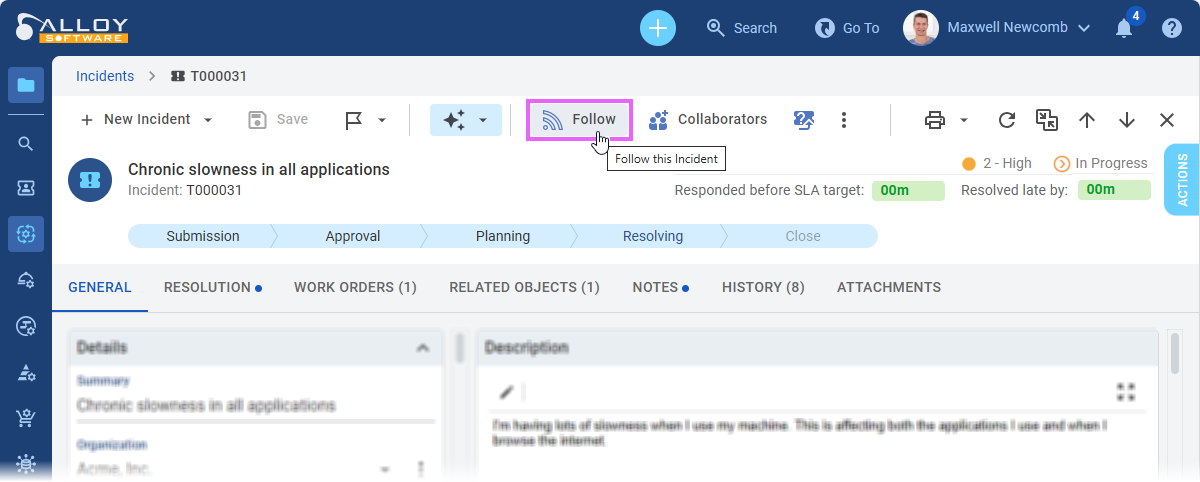
In addition to automatic subscriptions, you can also follow items manually. To do this, use the Follow action. By default, this action is available on the object form toolbar at the top of the form, as shown in the screenshot below. You can also follow items from data grids by using the Follow command in the hamburger menu; this action is located under the Communication group.
My Followed Items
Once you follow an item, you gain quick access to all followed items. To view them, navigate to My Work > My Followed Items. This is your personal list of followed items, visible only to you. It appears as a standard data grid with full support for filtering, grouping, and running workflow actions directly from the grid.
Unfollowing Items
To stop following an item, use the Unfollow action. The easiest way is through the My Work > My Followed Items data grid. You can also unfollow items from the object form's toolbar.
Unfollowing removes the relationship between you and the item. The system will stop sending notifications about the item, and it will no longer appear under My Followed Items.
Availability of Follow and Unfollow actions
By default, you can follow (and unfollow) all objects whose statuses frequently change throughout their lifecycle. This includes tickets of all classes, knowledge base articles, projects and project tasks, contracts, documents, organizations, locations, persons, groups, and more. If needed, administrators can configure Follow and Unfollow workflow actions for other object types beyond the default list.
You can follow only active items — those currently in progress or in use. Items that are closed, retired, or otherwise inactive (such as closed tickets or retired knowledge base articles) cannot be followed because they no longer receive updates.