Submit tickets and requests
Updated in 2026
See how to report an issue
Report an issue
If something isn’t working as expected and you can’t find a ready-made solution in the knowledge base, you can submit a ticket to report the issue to the IT department.
-
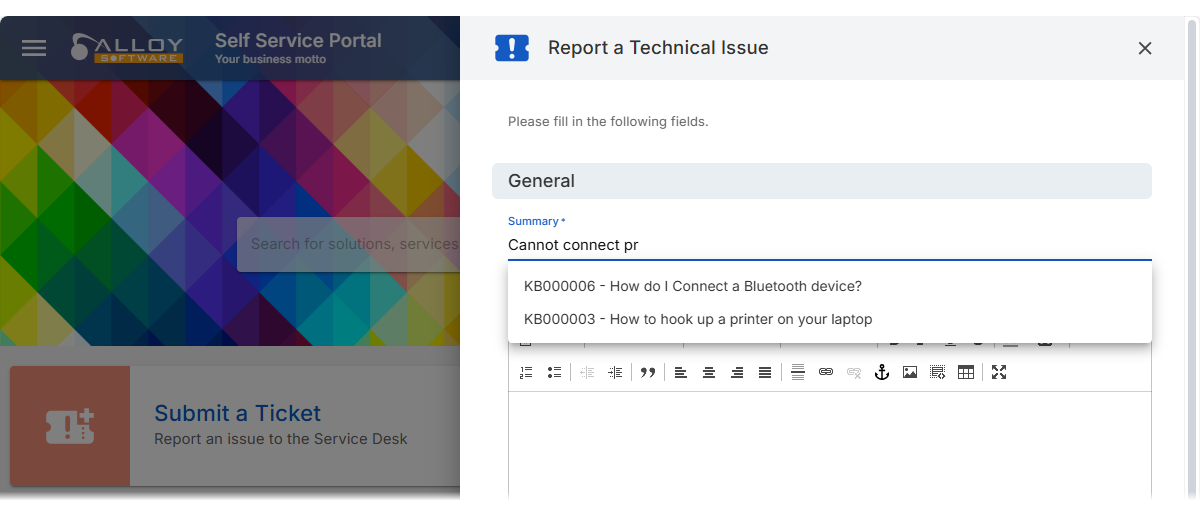
From the homepage, click Submit a Ticket. The Report a Technical Issue form opens.
-
Fill in the required fields to describe your problem. Be as specific as possible to help IT understand the issue.
While typing the Summary, the portal may automatically suggest ready-to-use solutions. These are Knowledge Base articles that might help you fix the problem yourself. If one of the suggestions solves your issue, you can close the dialog without submitting the ticket.
-
You can also add collaborators - for example, your manager or a teammate - so they receive updates about this ticket.
Request a service
For things like requesting new hardware, software, or account setup, you’ll use the Service Catalog:
-
From the homepage, click Request a Service. You may also select Service Catalog from the side navigation menu.
The Service Catalog opens, showing all IT services available to you.
-
Select the service you need,complete the request form, and submit it.
To find services faster, use the search filter or the category tags on each card.
TIP: The services you see depend on your role. For example, someone in HR might see different service options than someone in Finances. This helps keep the catalog focused on what’s relevant to you.
Track and update tickets and requests
Whenever IT updates your ticket, you’ll get a notification, both by email and via the notification bell. You can also see the latest updates on the homepage, in the Latest Updates widget. If you need to view a specific ticket — to check details, add a comment, or cancel it — you can do so easily.
-
From the side navigation menu, select Tickets and Requests.
-
Open the ticket
-
Here you can:
-
Add a comment if you think IT needs more details
-
Attach files like screenshots or documents
-
Mark the ticket as closed if the issue is no longer relevant
-
Provide feedback on resolved tickets
After your ticket
-
Select a star rating based on your experience
-
Optionally, leave a comment to provide more details
Your feedback helps the IT team improve service quality and better address your needs in the future.
Add collaborators
When creating a ticket
Collaborators will:
-
Receive notifications on ticket updates
-
Be able to view the ticket details
-
Get notified when the ticket is resolved
For example, if you submit a ticket about a printer issue, you might add your manager as a collaborator so they’re aware of the delay affecting your team.