Your profile
This page explains your profile in the Self Service Portal. Here, you can change your password, customize the look and feel of the portal, choose your display language, and control how dates, times, and numbers are formatted. These settings are personal, meaning they affect only your account and do not change the way the portal looks for other users.
Access your profile
To open your profile, click your avatar in the top-right corner of the portal and select Profile from the menu. This takes you to the page where you can manage your personal settings.
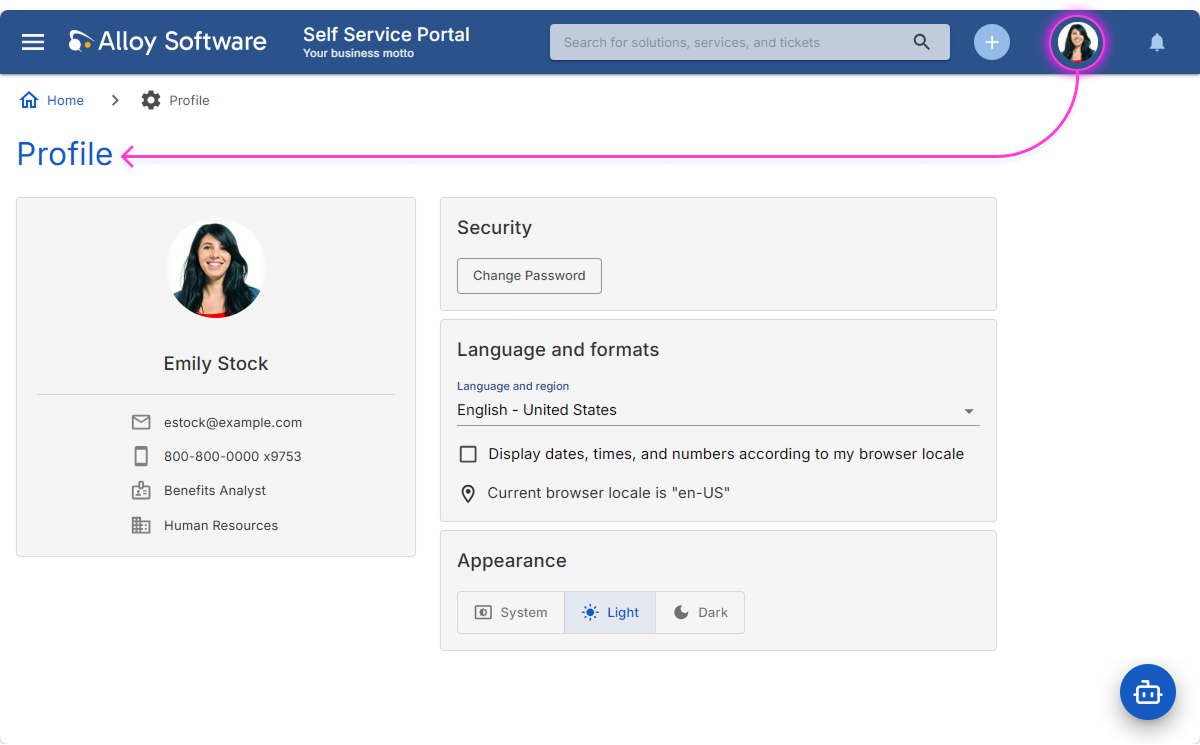
Change your password
If you sign in to the Self Service Portal with a user name and password, you can change your password directly in your profile. You’ll need to enter your current password first. Change it to keep your account secure or to follow your organization’s rules for regular updates.
-
Under Security, click the Change Password button.
-
Enter your current password, then enter your new password and confirm it.
- Click Change Password to save your new password.
If you sign in using Microsoft, Google, or another Single Sign-On (SSO) provider, the Change Password option isn’t available, because your credentials are managed outside the Self Service Portal.
Change the display language
The Self Service Portal automatically detects your web browser’s default language and adjusts the interface accordingly. However, you can manually choose another language from the available list in your profile settings.
Adjust regional formats
Your portal language determines not only the interface language, but also the formats for dates, times, and numbers—such as whether the day or month comes first and which symbol is used for thousands. If your browser’s locale isn’t listed in the portal’s language options, the portal will use the default language (usually English – United States) and its regional formats will apply as well.
To use your own locale’s formats, select the Display dates, times, and numbers according to my browser locale checkbox in your profile settings. This will make the portal follow your browser’s regional formats for displaying dates, times, and numbers.
For example, if your locale is English – Australia, you can keep your interface language as English – United States and select this checkbox. The portal will then display dates, times, and numbers in the Australian format, which is different from the American format.
Switch between Dark mode and Light mode
Under Appearance, you can choose how the portal looks for you:
-
Light: Uses a brighter color scheme, ideal for well-lit environments.
-
Dark: Reduces brightness and can be more comfortable for extended use or low-light conditions.
-
System (default): Automatically matches your device’s current theme setting (light or dark).