What's new in version 2025.3
December 2025
Welcome to the Winter 2025
Internationalization and Spanish language support
In this release, Alloy Navigator begins expanding internationalization and localization support across the platform. The main interface for IT professionals can now be switched to another language, starting with Spanish. After switching, menus, labels, and headings throughout the Web App, including the Admin Center, are displayed in the selected language, making it easier for global teams to navigate the platform and complete tasks efficiently.
Alloy Navigator has long provided localization features, such as AI-powered natural language processing in workflows, multilingual interfaces for end users in the Self-Service Portal, and configurable regional settings, including currency formats. With internationalization now extended to the main interface, the platform adapts more seamlessly to different languages and regions. Together, these enhancements provide a more consistent experience for all users, improving usability for global teams and supporting broader adoption across international markets.
GETTING STARTED: In the Admin Center, navigate to General > Language & Region, and select Spanish as the display language.
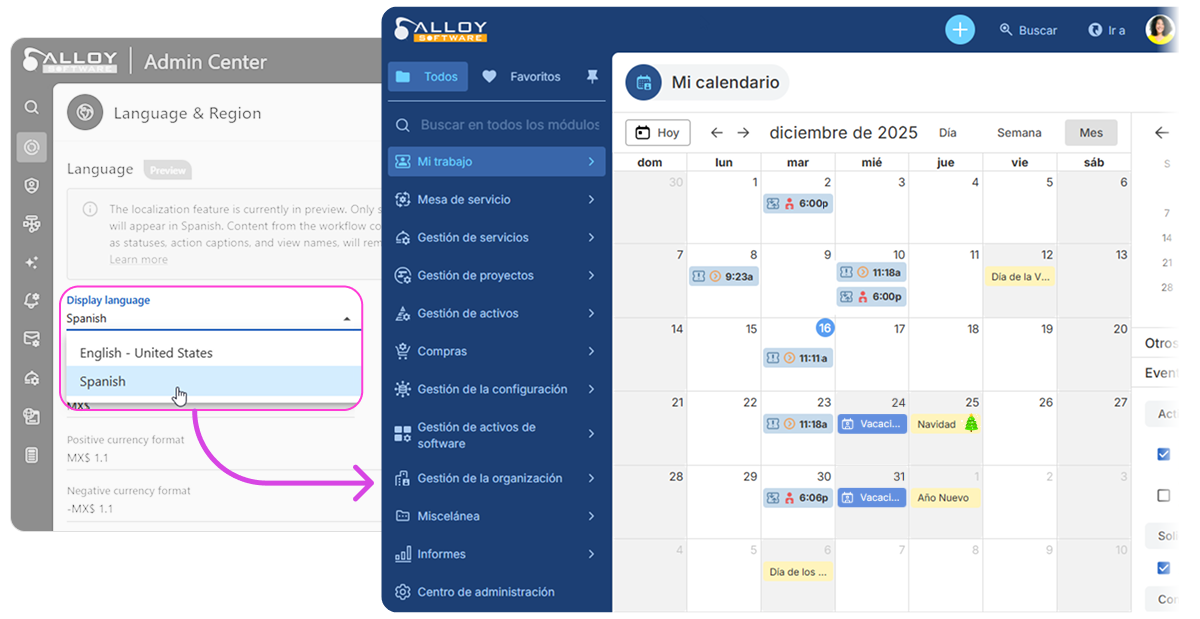
NOTE: The ability to switch the Web App to Spanish is currently in preview. As a first step, only static user interface elements are displayed in the selected language. Dynamic content generated by the workflow, such as statuses, action captions and view names, continue to appear in English. We welcome your feedback as we continue to improve and refine the multilingual experience.
AI-powered workflow actions in the Self-Service Portal
Alloy Navigator extends support for AI-powered workflow actions in the Self-Service Portal. You can now embed AI directly into actions that create or update tickets and other objects for end users. For example, AI can analyze the summary and description entered by a user and suggest a solution based on public sources and the internal knowledge base, potentially resolving the issue without creating a ticket.
Unlike the built-in AI assistant, which becomes available immediately after it is enabled, AI-powered actions in the Self-Service Portal are not enabled by default. This approach gives you full control over how and where AI is used. You can modify existing actions or create new ones to ensure AI operates only within the scope and rules you define.
GETTING STARTED: In the Settings App, navigate to Self Service Portal > Workflow to customize existing actions or create new ones. Add the AI Control element where appropriate. Before making changes, be sure to back up your existing actions.
AI Assistant logging
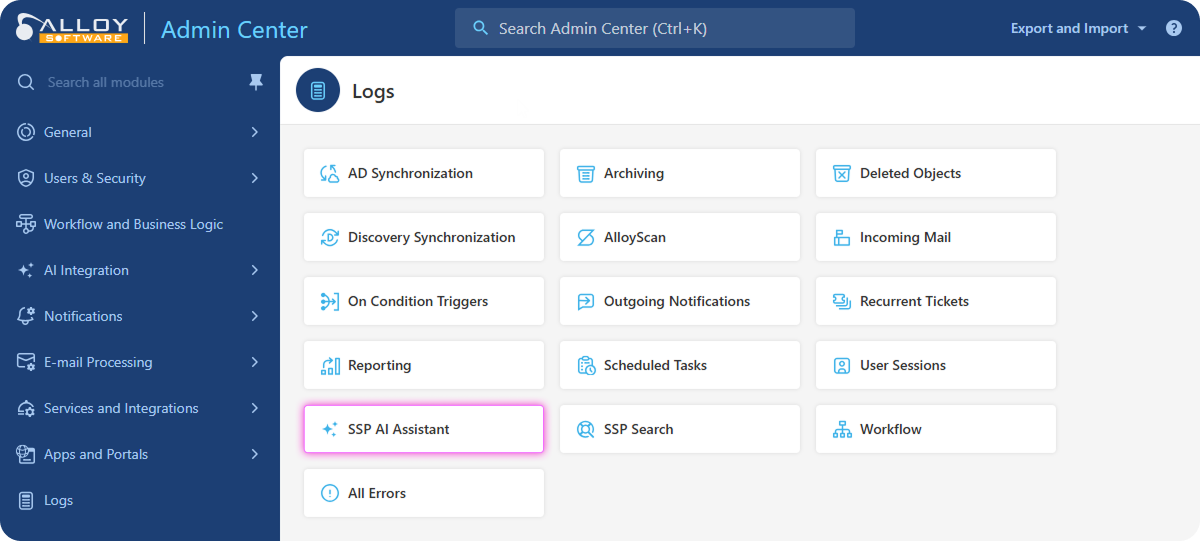
The AI Assistant, introduced this fall, has quickly become popular with customers, helping end-users resolve issues and reducing the load on support teams. This release adds detailed logging that records how the assistant uses your internal knowledge base when generating responses. The new log provides greater visibility into the assistant’s reasoning process, making it easier to review its behavior and fine-tune content or settings to improve the accuracy and relevance of responses.
GETTING STARTED: In the Admin Center, navigate to Logs > SSP AI Assistant Log.
Temporary password sign-in for SSO-only Web App
On-Prem only
When the Web App is configured for Single Sign-On (SSO) only, access can be lost in certain scenarios, for example after moving a database to a test environment where SSO is not available. To prevent this, a new Sign in with password option has been added to the Web Configuration tool. This option allows administrator to perform a one-time password-based sign-in in order to update the Web App's authentication method. It provides a safe a reliable way to restore access without permanently changing your SSO configuration.
TIP: The Web Configuration tool is available on the server hosting the Alloy Navigator Web App instance.
Other enhancements and resolved issues
AI assistance
-
Resolved a "Value cannot be null" error that affected customers using Azure OpenAI Service. The error occurred when running AI-powered actions while the Enable speech recognition option (Admin Center > AI Integration > AI Configuration) was disabled. This setting no longer affects AI-powered workflow actions and now controls only speech recognition for AI Writing Assistance in rich text fields.
@Mentions
-
Fixed an issue where @mentions added in workflow steps, such as comments created by the Add Comment step, were not displayed correctly in email notifications. @Mentions now appear as proper, clickable links in notification emails.
Activity panel
-
The Activity panel has been updated to align with the main data views, delivering a more consistent user experience.:
-
The view customization menu has been moved from the three-dot menu to the standard gear icon in the top-right corner
-
Sorting is now supported for activities displayed in Cards mode.

-
A modification indicator now appears on the gear icon when there are unsaved quick changes to the current Table view.
-
View-related actions are now consistently accessible from both the view list and the Customize View panel.
-
Object creation
-
Resolved an issue when creating objects through custom workflow actions that used filtered lookups. If a lookup filter referenced a placeholder for an object field not present on the action form, the filter did not apply, resulting in an empty lookup list and preventing object creation. Filters now apply correctly in these scenarios.
-
Resolved an issue where creating service requests from the "+" menu could result in duplicate records when navigating to an item and returning using the back arrow button.
Self-Service Portal
-
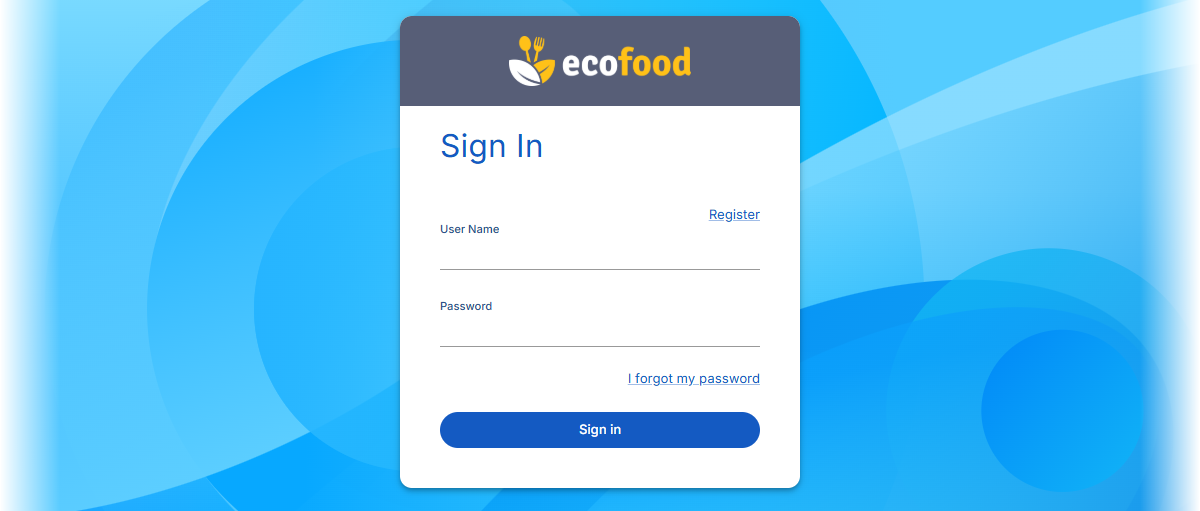
The sign-in dialog header now reflects the custom Self-Service Portal color theme, providing a consistent visual experience from the initial sign-in screen.
-
Improved performance for large Service Catalogs. Catalogs containing thousands of items now load within seconds, instead of minutes, and no longer cause intermittent loading errors.
-
Fixed display issues with long announcements, ticket descriptions, and knowledge base articles containing images. Content now renders correctly in all supported web browsers without being cut off or showing extra empty space.
Email integration
-
Resolved an issue with configuring
Settings App
-
Fixed an issue where resetting the email notification From address to the system default did not enable the OK button, preventing the change from being saved.
-
Resolved an access violation error that could occur when saving Chart widgets after adding or removing fields.
Import tool
-
The Import tool now correctly populates all fields when importing
Online documentation
-
Corrected references in the AlloyScan documentation that incorrectly mentioned Alloy Discovery. The documentation now uses the correct product name throughout.